Create an Attached Work Order
An attached work order is associated with specific assets on the map.
 TIP: For a quick start guide on this subject, see Create an Attached Work Order.
 IMPORTANT: Make all desired changes to the new work order before syncing your device, as it does not appear in the app unless the work order is included in a saved search or query that has been added to your mobile inbox. See Add Saved Searches to the Mobile Inbox in the Designer Office Companion 23 Guide, Enable Queries for the Mobile Inbox in the Respond 5.3 Guide, and Add Queries to the Mobile Inbox in the Admin 3.3 Guide for more information.
Complete one of the following to create an attached work order:
 From the Map
- Open the Map.
-
-
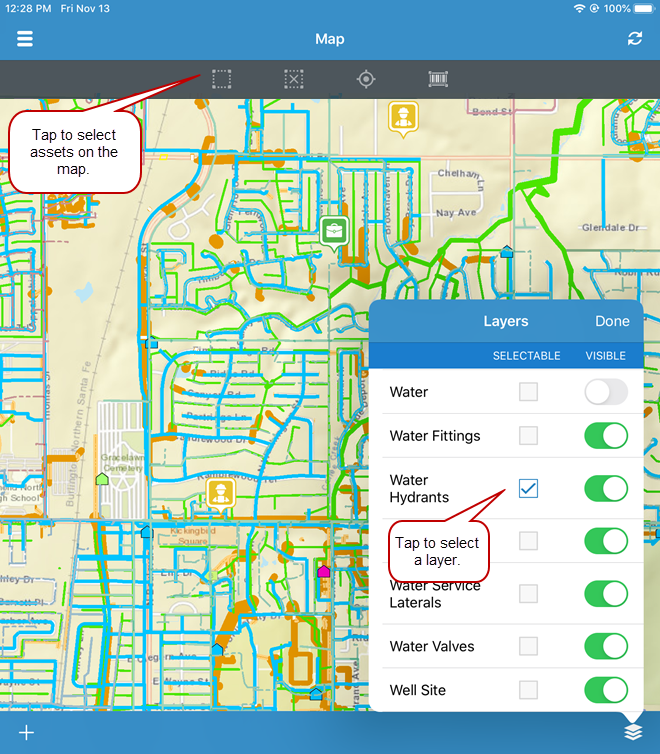
TIP: You can control the visibility of asset layers on the map by
 NOTE: If you are using a tiled map, the only map layer that appears in the Layers list is World Imagery. If you are using a dynamic map, you will have more than one layer to choose from.
TIP: The selection tool is not active until an asset layer is set as selectable.
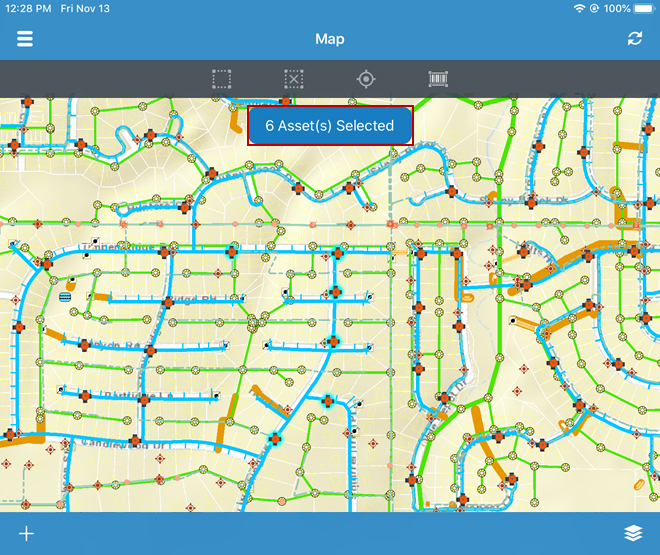
A message appears that shows how many assets were selected. See Remove Individual Assets from Selection for information on how to remove assets from the selection.
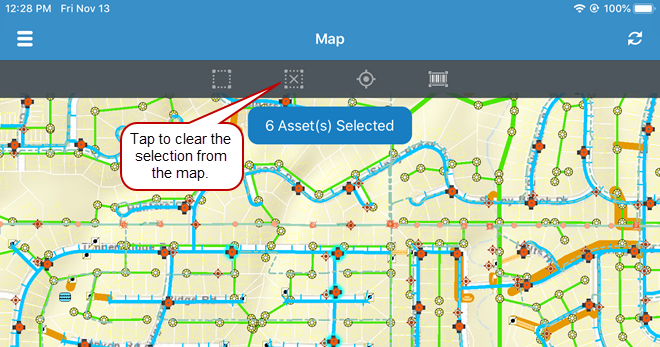
- To clear the assets you've selected, return to the map and
- Once you've selected the desired assets on the map,
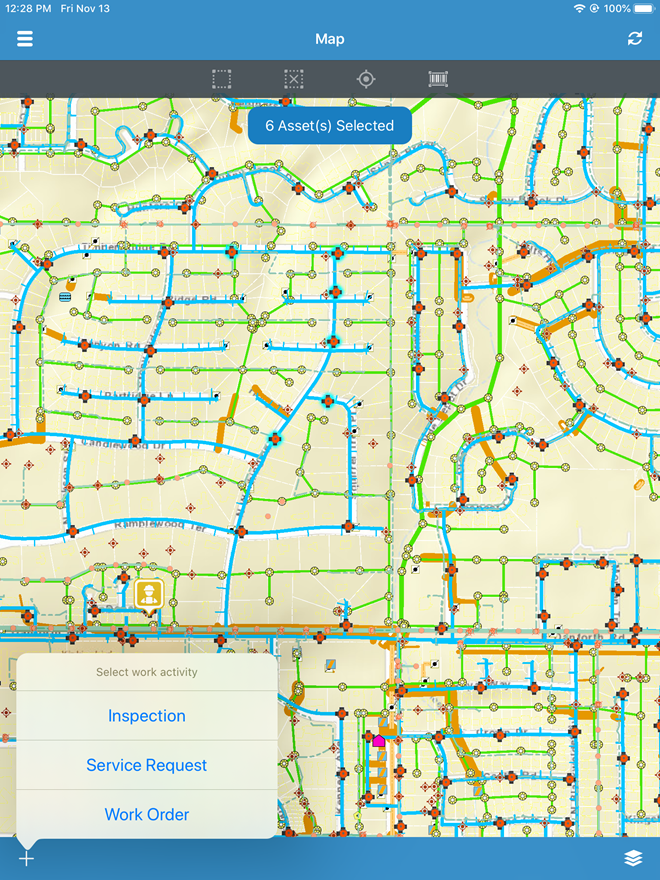
The Asset Group and Asset Group fields are already populated based on the asset(s) selected on the map.
- Select the desired work order Template.
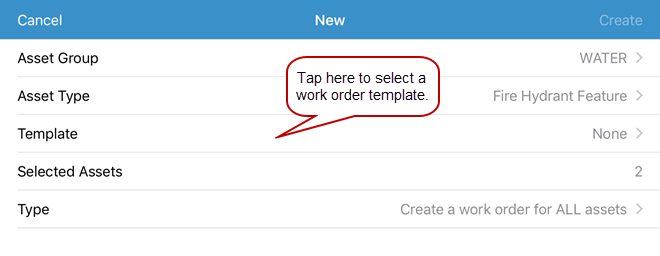
The Selected Assets field shows the number of assets selected on the map.
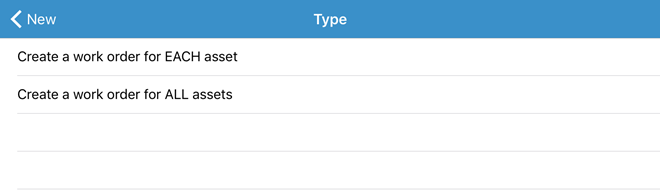
When the work order is created, Pending appears on the work order to indicate that the work order has not yet been synced.
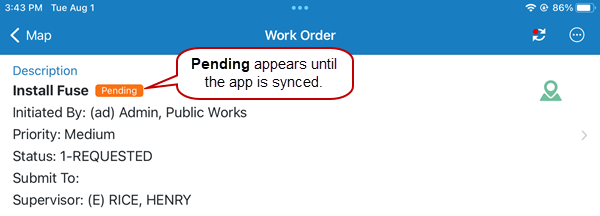
The next time you sync the app, Pending disappears and the work order is synced with the main system.
If multiple work orders are created, they will all appear on the map.
From a Work Order
If a child work order is created from a parent work order that has assets attached to it, the child has the same assets attached.
- Open a work order that has assets attached to it.
-
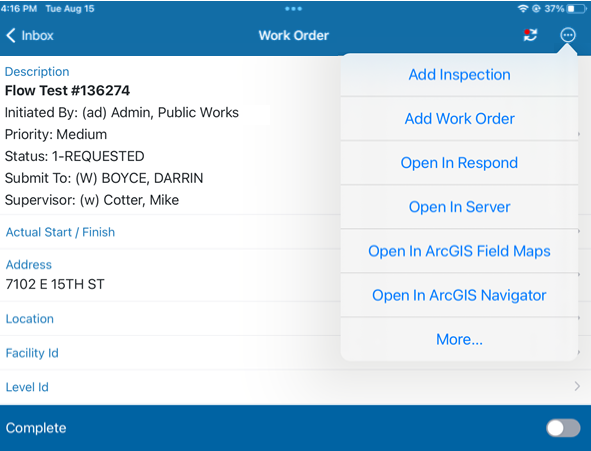
Once the work order is created, it appears at the bottom of the parent work order in the Related Work Activities section.
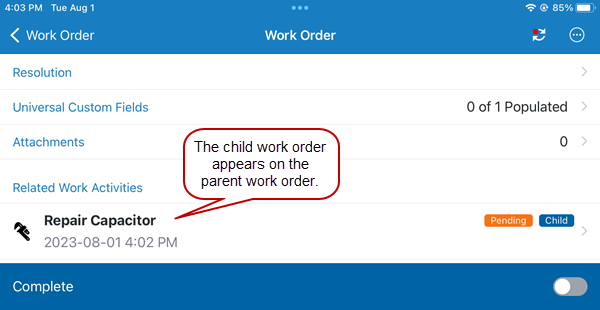
When a work order is created, Pending appears on the work order until you sync the app. The next time you sync the app, Pending disappears and the work order is synced with the main system.
From a Service Request
You can create an attached work order from a service request.
- Open the map and select the desired assets.
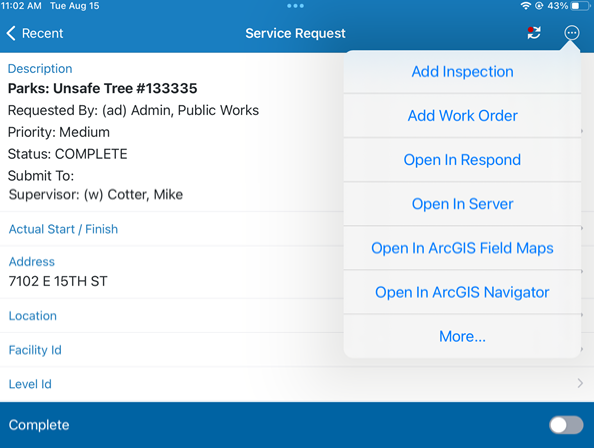
- Open the service request you'd like to create the work order from.
-
The Asset Group and Asset Type fields are already populated based on the asset(s) selected on the map.
- Select the desired work order Template.
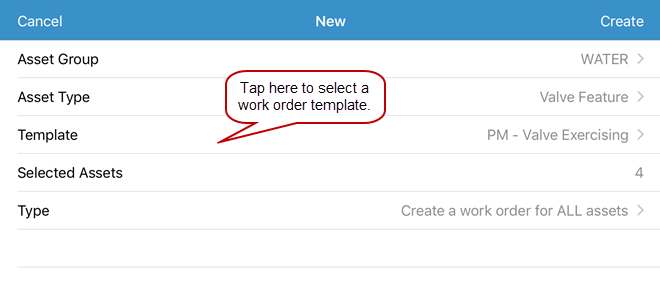
The Selected Assets field shows the number of assets selected on the map.
When one work order is created, it will open. If multiple work orders are created, they all appear on the map.
Once the work order is created, it appears at the bottom of the service request in the Related Work Activities section.
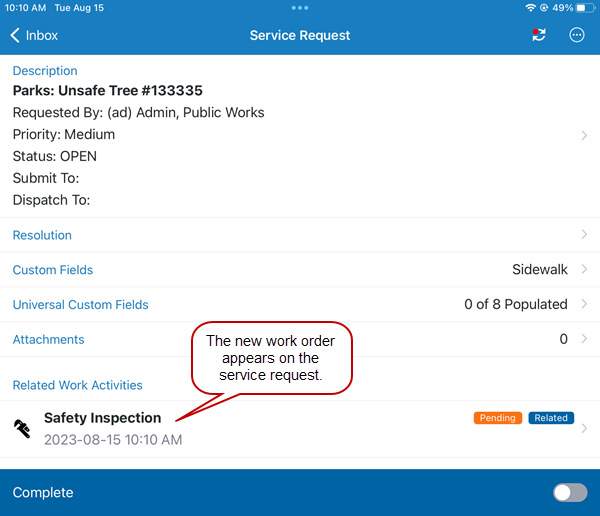
When a work order is created, Pending appears on the work order until you sync the app. The next time you sync the app, Pending disappears and the work order is synced with the main system.
From an Inspection
If a work order is created from an inspection that has an asset attached to it, the work order has the same asset attached.
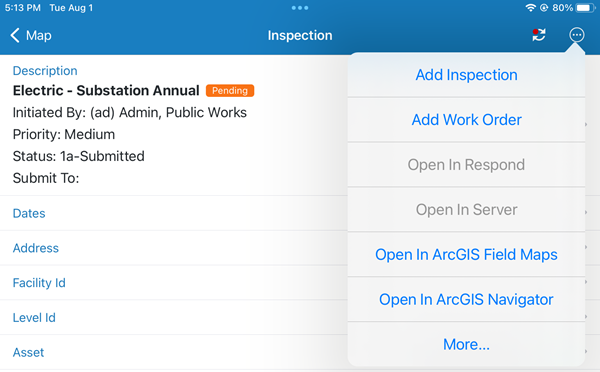
- Open an inspection that has an asset attached to it.
-
Once the work order is created, it appears at the bottom of the inspection in the Related Work Activities section.
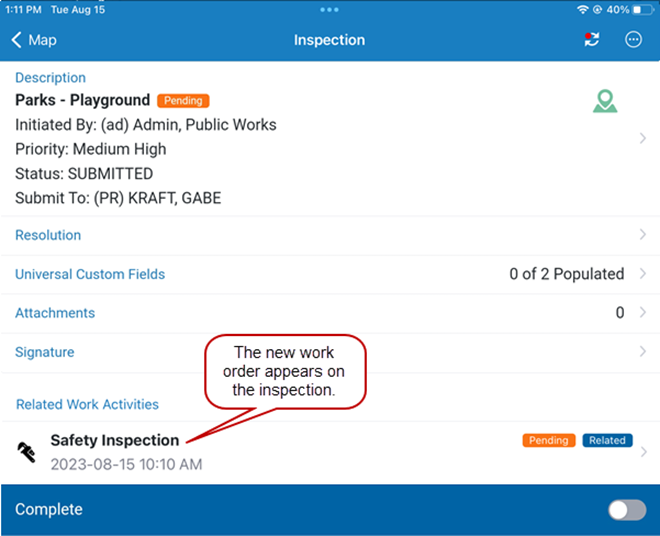
When a work order is created, Pending appears on the work order until you sync the app. The next time you sync the app, Pending disappears and the work order is synced with the main system.