View or Edit Custom Fields
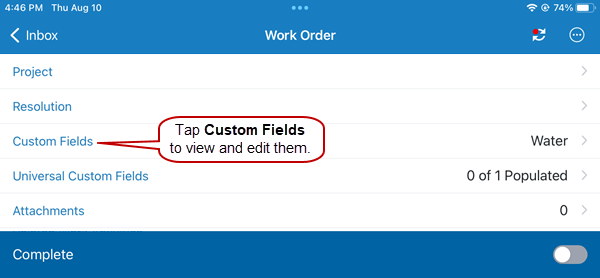
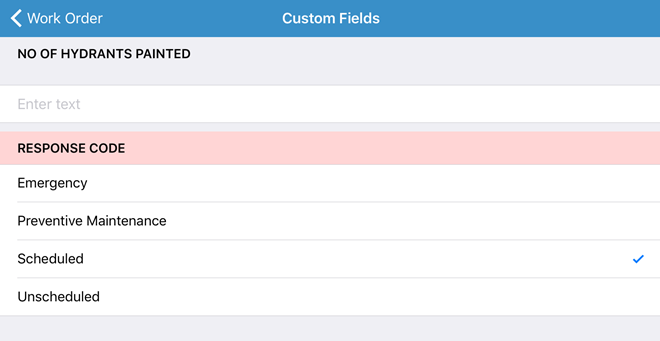
Custom Fields displays any custom fields associated with the work order.
 NOTE: The Custom Fields field shows the custom fields that are configured for the category associated with the work order. If there are no custom fields configured, they are hidden by default on the work order.
- Open a work order.
-
 BEST PRACTICE: Creating an N/A option for Universal Custom Fields and Custom Fields will allow you to deselect other options. See Configure Custom Codes Preferences in the Admin 3.3 Guide for more information.