Create an Unattached Work Order
An unattached work order is not associated with a specific map feature. It is recommended that all unattached work orders are eventually attached to an entity. See
- Select New.
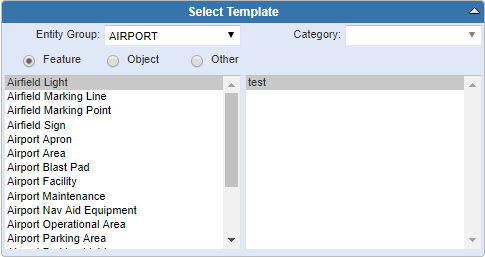
- Select the desired Entity Group.
- Select a Category. This is a way to further filter templates. It is set up by the administrator.
- Select Feature, Object, or Other. Select Feature or Object (related tables) to create a work order based on features or objects found in the geodatabase. Select Other to create a work order that isn't associated with the GIS.
- Select the asset type. Work order templates associated with the asset type show on the right.
- Select the work order template.
-
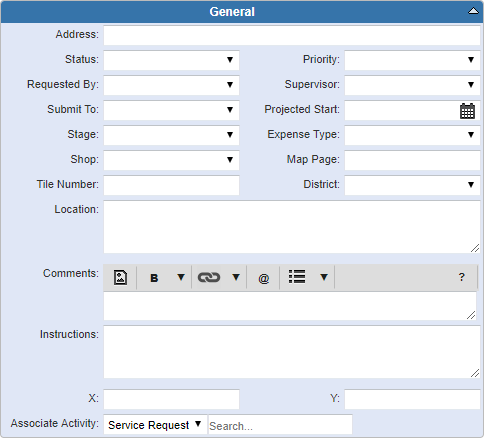
Enter information in the
 NOTE: Some fields may be automatically populated if your administrator has set it up to do so.

See Add an Asset to a Work Order for more information on attaching this work order to an asset.