Configure an Inspector's Schedule
Public Access allows users to schedule inspections for a case from the Public Access portal. The inspector workload must be set up for inspection scheduling to work properly.
- From the home page, click PLL and click Inspector Setup.
 TIP: You can filter the list of records displayed. See Filter Records for more information.
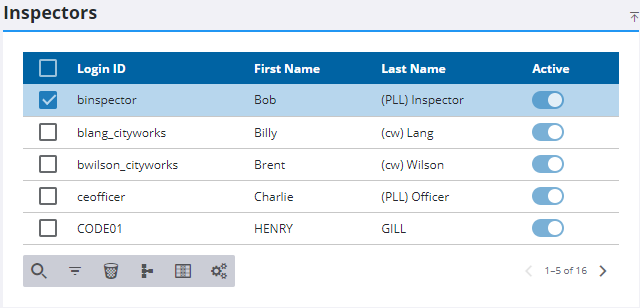
- Select the inspector to configure their work schedule.
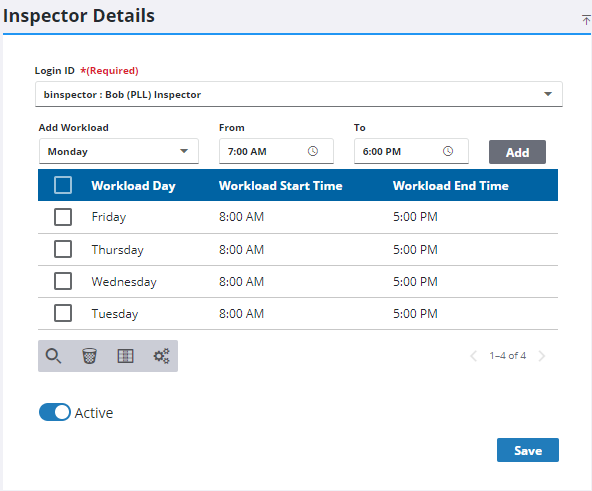
The working hours for the inspector display on the Inspector Details panel.
- To set the inspector's workload, select a day of the week from the Add Workload drop-down list.
- Select the start time in the From field.
- Select the end time in the To field.
The Workload End Time defines the conclusion of the inspector’s workday. If an inspection's estimated completion exceeds this time, the system blocks the scheduling of that task.
- Click Add to add the day and hours to the inspector's workload.
- Click Save.
If an inspector is taking time off work, add those days under Inspector Days Off. Inspections are not assigned to inspectors on their days off.
 IMPORTANT: The Calendar setting ignores holidays and days off during scheduling, while the Week Days setting accounts for them. See Configure Holidays for more information on configuring holidays.
- To remove a workday, select it and click Delete selected records.

