Add a Numbering Group
This section explains how to create a new numbering group.
|
|
 PREREQUISITES:
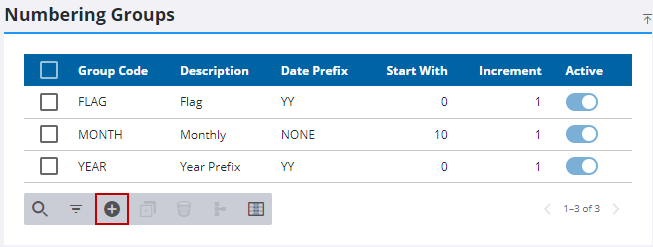
- From the home page, click PLL and click Numbering Groups.
- On the Numbering Groups panel, click Add record.
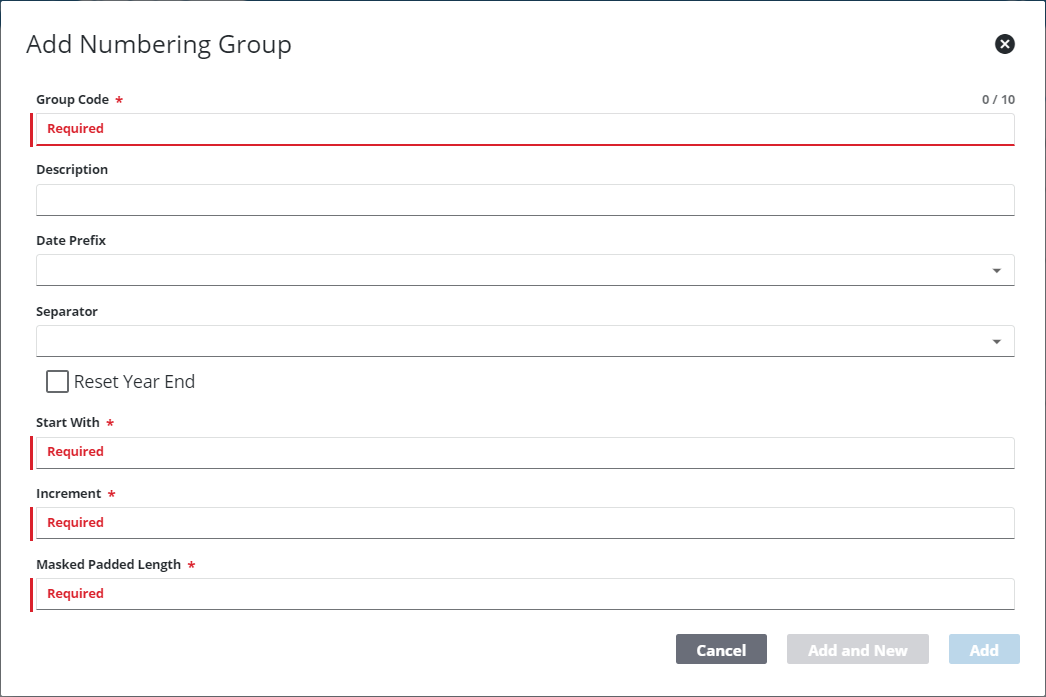
- In the Group Code field, enter a 10-character (maximum) name for the numbering group.
- Enter a brief explanation of the numbering group in the Description field.
- Use the Date Prefix drop-down list to select a date format.
-
Use the Separator drop-down list to select the kind of character used to separate elements of the date.
-
Select the Reset Year End check box if you want this numbering group to begin at zero at the beginning of each year. If this check box is not selected, the numbering group continues to increase numerically from year to year.
-
In the Start With field, enter the number you want to be the first case number in this numbering group. For example, you may want the numbering group to begin at zero (0), or you may want it to begin at one (1).
-
In the Increment field, enter the interval by which you want the case numbers based on this numbering group to increase.
-
Enter the number of digits you want each case number to have in the Masked Padded Length field.
 TIP: Administrators should base this value on the estimated number of cases they expect to have in a year.
- Click Add to create the numbering group, or click Add and New to create another numbering group.
 NOTE: The Review Config panel provides visibility of where a selected data item (such as a case type, PLL user, status code, or other PLL item) is being used. See Review PLL Configurations for more information.

