Edit a Task Map Layer
Task map layers can be edited.
|
|
 PREREQUISITES:
 NOTE: If you want to configure a task map layer to automatically assign a task to a specific user, the Field value needs to be mapped to a GIS field that contains the exact username. For example, if the username is cityworks, there must be a GIS field for usernames and that field must be populated for each asset. If the GIS data contains the username cityworks and there is a user with that username, the task will be assigned to that user.
- From the home page,
 TIP: You can filter the list of records displayed. See Filter Records for more information.
- On the Task Map Layers panel, select the entry you want to edit.
 Edit an Add Task or Remove Task Condition
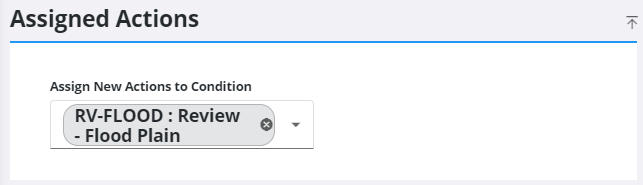
- On the Assigned Actions panel, add or remove items as needed using the Assign New Actions to Condition drop-down list.
- On the Update Task Map Layer panel, update any needed fields.
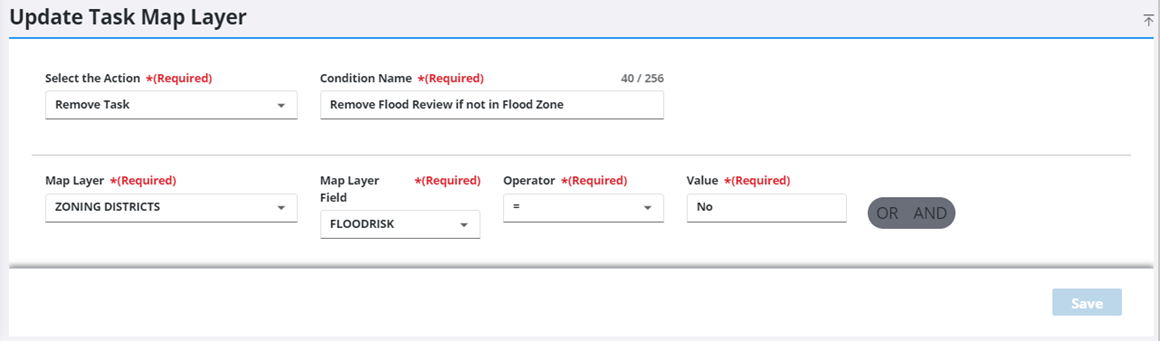
The Operator field will populate according to the value selected for the Map Layer Field, and each value may have different operators associated with it.
 IMPORTANT: The value you enter in the Value field must match what is set up in the GIS in order for the condition to take effect. For example, if the GIS specifies a value of YES, you must enter YES in the Value field for the specified task to be added or not added to the workflow based on the condition you created.
- Select the AND or OR option buttons to add additional criteria to the condition.
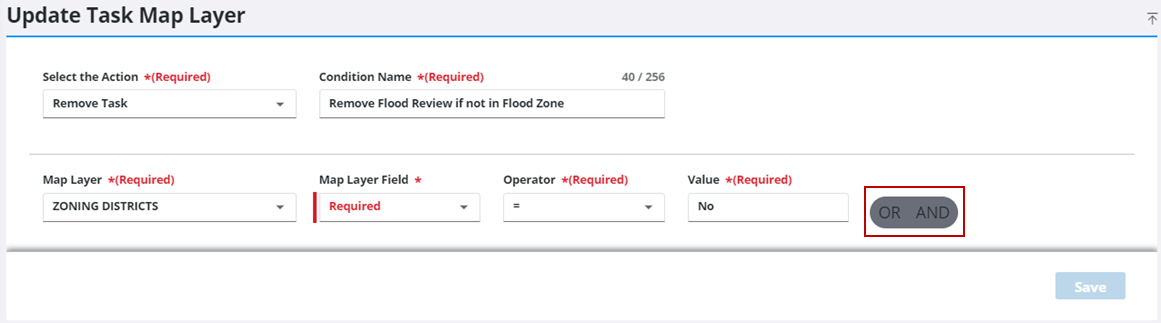

IMPORTANT: The tasks you want to add or remove from the workflow based on the selected conditions must be included in the task group assigned to the case template. This is because the task needs a milestone number so Cityworks knows where to place it in the workflow when the condition parameters are met. See Workflows for more information.
Edit an Assign To Condition
- On the Assigned Actions panel, add or remove items as needed using the Assign New Actions to Condition drop-down list.
- On the Update Task Map Layer panel, update any needed fields.
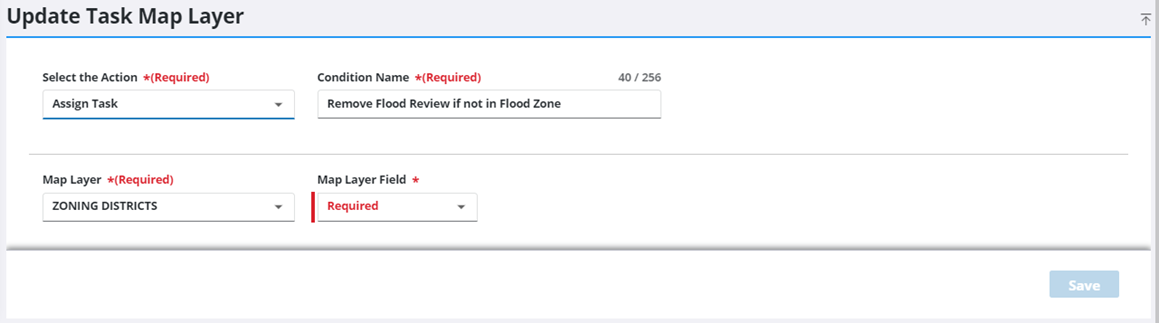
IMPORTANT: The tasks you want to add or remove from the workflow based on the selected conditions must be included in the task group assigned to the case template. This is because the task needs a milestone number so Cityworks knows where to place it in the workflow when the condition parameters are met. See Workflows for more information.
|
|

