Configure Editable Asset Fields for a Custom Inspection Template
Editable Asset Fields allows you to assign editable asset fields to directly update GIS attribute information from Cityworks for the entities that apply to the inspection template. A user must be in a group that is given the Update permission under Inspections > Template Security to edit these fields. See How to Edit Asset Attributes in Office for more information on editing asset attributes on an inspection in Office.
|
|
 PREREQUISITES:
 TIP: You can filter the list of records displayed. See Filter Records for more information.
- Select a custom inspection template from the Work Activity Templates panel.
- Click the Asset Configuration tab on the Template Details panel.
The Editable Asset Fields section shows existing editable asset fields.

- Click Add to add a new editable asset field.
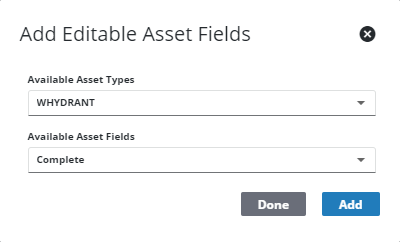
- Select the Available Asset Types. This field is populated based on the Apply to Entities section defined on the General tab.
- Select the Available Asset Fields that are editable.
- Click Add.
- Repeat these steps for any other desired editable asset fields.
- Click Done.
- To remove an editable asset field from the inspection, select it from the Editable Asset Fields section and click Delete selected records.
 NOTE: Admin automatically saves the changes you make. A notification pops up at the bottom to verify changes have been saved.

