Perform a Bulk Update
Multiple records can be edit in a table at once from an uploaded CSV file.
 IMPORTANT: Only existing records can be edited. New records cannot be added at the same time and will result in an error if you try to upload the CSV. See Perform a Bulk Import for more information on adding new records in bulk.
- From the Type drop-down list, select which table you want to edit records for in bulk.
- Click Bulk Update.

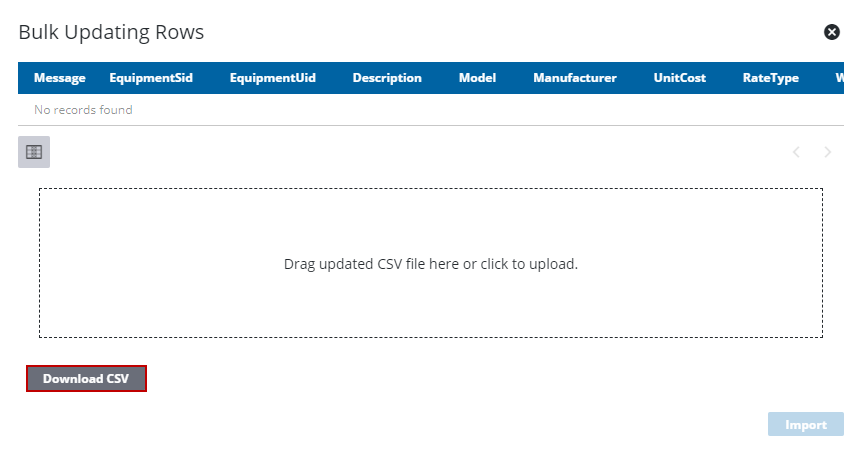
- Click Download CSV.
If no rows are selected on the Table Editor panel, all rows are included in downloaded CSV file. If rows are selected, only those rows are downloaded.
- Using the CSV template, edit as many records as desired.
- Drag the populated CSV file to the box on the Bulk Updating Rows panel or click the box to browse to the location.
The edited records can be reviewed on the Bulk Updating Rows panel. The edits are highlighted in yellow.
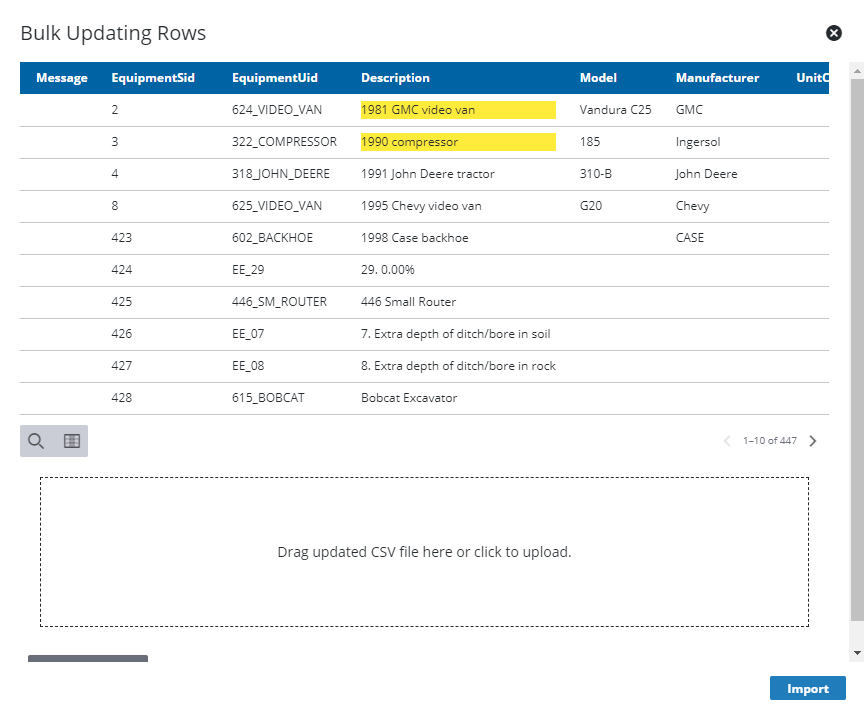
- Click Import.

