Add or Edit a Contractor
|
PREREQUISITES:
|
 NOTE: Contractors can also be added using the Table Editor. See Table Editor in the Office/Tablet 15.2 for AMS Guide for more information.
- From either the home page or General tab, click Contractors.
The Contractors panel lists all of the contractors. You can filter the list by typing the first few letters of the contractor's name in the search box in the top-right corner.
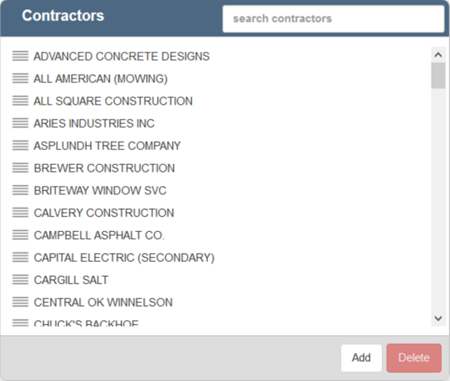
- To add a contractor, click Add on the Contractors panel.
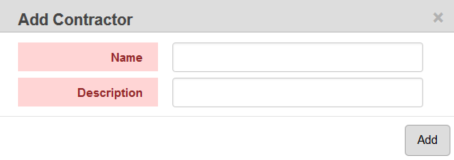
- Enter the contractor's Name and Description and click Add.
The new contractor will display in the Contractors panel.
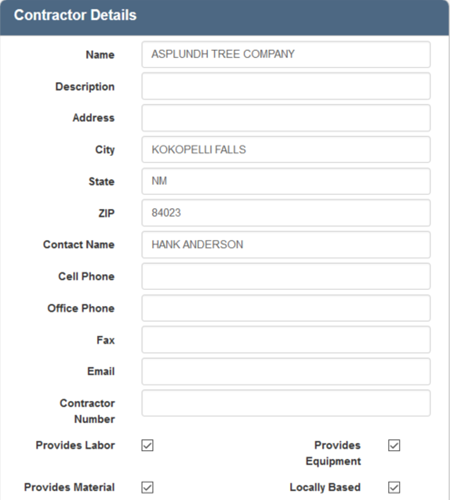
- Select it and enter the contractor's information, including any Custom Data Fields configured for contractors, Labor Rates, License Information, and Keywords in the Contractor Details panel.
For an explanation of fields on the Contractor Details panel, see Contractor Fields
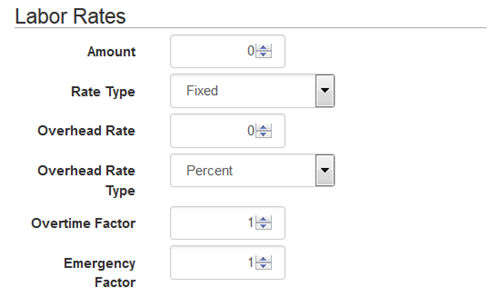
- In the Labor Rates section define the contractor's labor rates.
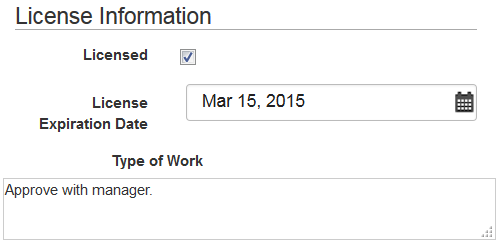
- In the License Information section of the Contractor Details panel, enter the information about the contractor's license.
- To edit a contractor, open it from the Contractors panel and make the desired changes.
NOTE: Designer automatically saves the changes you make. A notification will appear in the top-right corner of the window that says Data Saved when you make changes to the page.