Add or Edit a Customer Account
Customer account information can be set up so that service request fields are automatically populated with the caller's information. For more information on importing customer accounts, see Import Customer Accounts.
|
|
 PREREQUISITES:
- From either the home page or General tab, click Customer Accounts.
Existing customer accounts are shown in the Customer Accounts panel. You can filter the list by typing the first few letters of the customer name of the first few digits of the account number in the search box in the top-right corner.
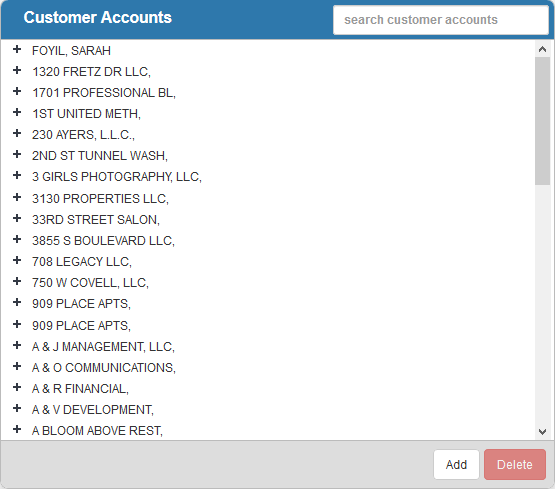
- To add a new customer account, click Add.
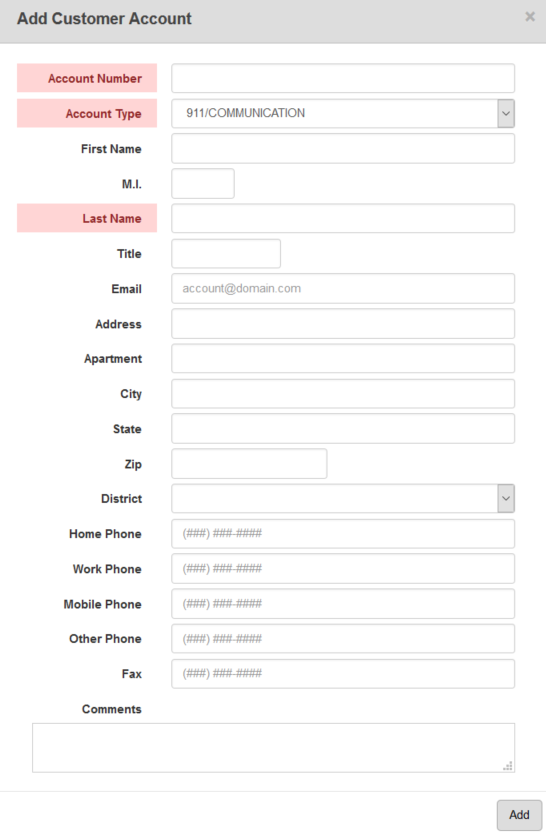
- Enter the customer's Account Number and select the Account Type from the drop-down list.
- Enter the customer's contact information and click Add.
The new customer account displays in the Customer Accounts panel.
- To edit a customer account, select it and make the desired changes on the Details panel.
 TIP: If you want to update existing customer account data, you can download the existing table data first, edit the data as needed, and import the updated file. See Bulk Import for more information about downloading and importing data.
 NOTE:
NOTE: