Add Labor to a Work Order Template
Employee or contractor labor can be added to the work order template so that it is automatically included on any work order created from the template. The labor costs are listed on the work order as an Estimated cost, which, if accurate, can be moved to the Actual cost.
|
|
 PREREQUISITES:
- Select the Group and Type on the Templates panel to display work order templates associated with the selected asset type.
- Select a work order template.
- Click the Labor tab on the Details panel.
Existing labor items display under Estimated Labor Costs.
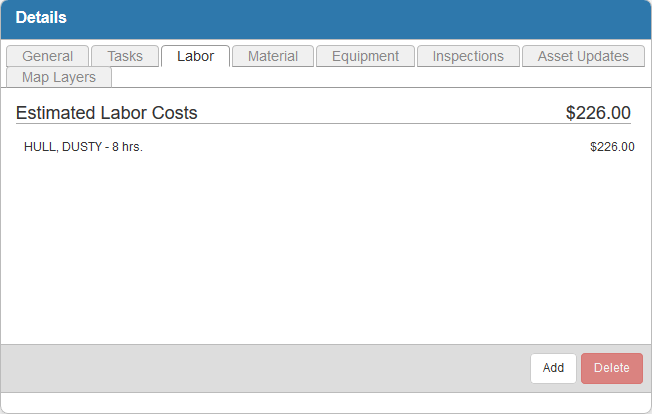
- Click Add under to add labor.
The Employees and Contractors lists on the Add Labor panel can be filtered by typing the first few letters of the employee's or contractor's name in the search boxes.
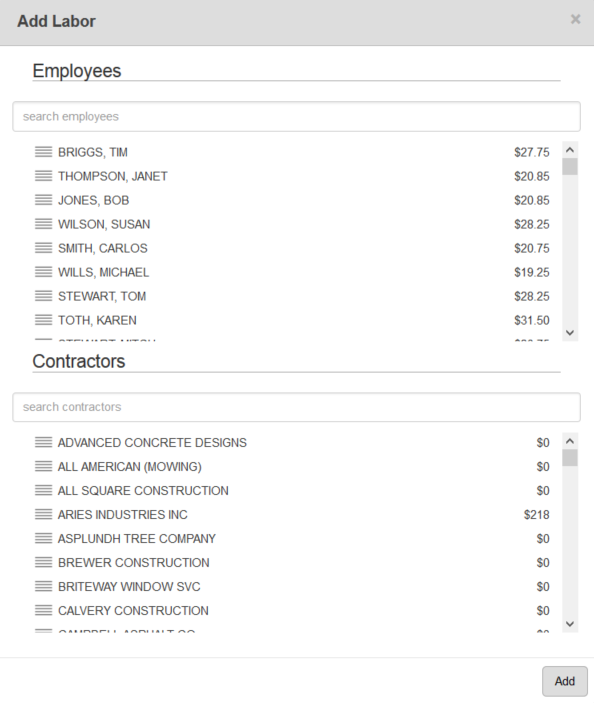
- Select the employee and/or contractor and click Add.
 TIP: You can use <Shift + click> or <Ctrl + click> to select multiple employees or contractors.
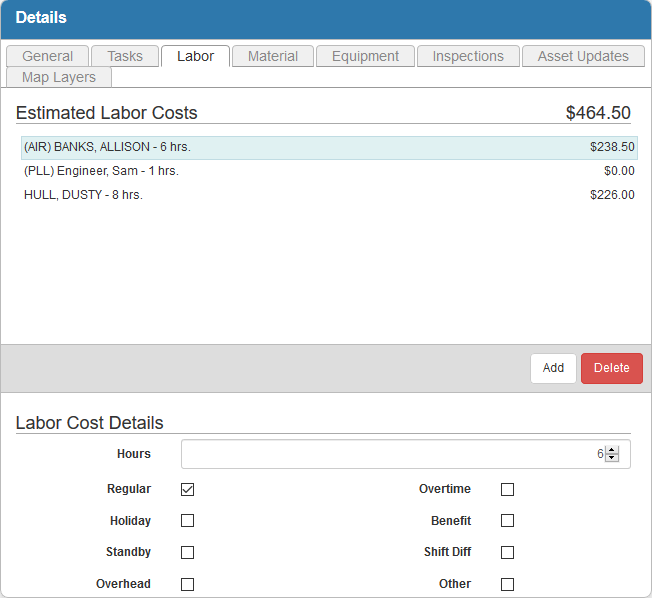
- Select the employee or contractor in the Estimated Labor Costs section to finish entering the Labor Cost Details.
- If you selected an employee, enter the number of Hours to apply to this work order template, and select the type of pay rate.
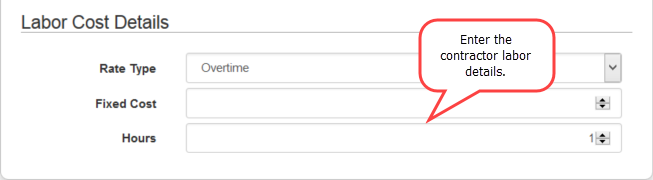
- If you selected a contractor, depending on the Rate Type selected, different fields are shown:
- Hourly: If you selected the Hourly rate type, enter the number of Hours to apply for the labor. Do not enter a Fixed Cost.
- Overtime: If you selected the Overtime rate type, enter the number of Hours to apply for the labor. Do not enter a Fixed Cost.
- Holiday/Emergency: If you selected to Holiday/Emergency rate type, enter the number of Hours to apply for the labor. Do not enter a Fixed Cost.
- Fixed: If you selected the Fixed rate type, enter the Fixed Cost to apply for the labor and enter the number of Hours it takes to accomplish the work.
- Per Unit: If you selected the Per Unit rate type, enter the number of Units to apply for the labor. Do not enter a Fixed Cost.
 NOTE:
NOTE: