Remove an External User
A external user may need to be removed from the system from time to time. Doing so must be done carefully or could cause errors. This section will discuss how to remove an external user safely.
|
PREREQUISITES:
|
 IMPORTANT: While it is possible to delete a [Item Name], we strongly discourage you from doing so. Deleting a [Item Name] will cause errors for any users associated to that security role.
If the user has never created or been associated with a case, you can delete their account by following these steps:
- Open PLL Admin.
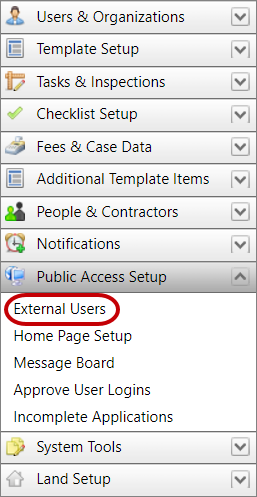
- On the PLL Admin page, select External Users from the Public Access Setup section of the menu panel at the left side of the screen.
- On the External Users panel, select the check box next to the user you wish to delete, then click Delete Record at the top of the panel.
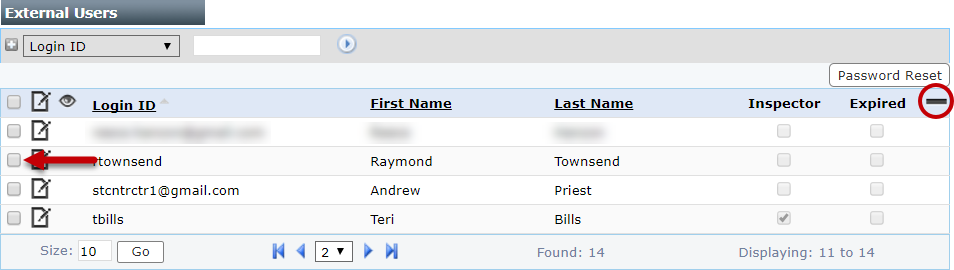
 NOTE: Search or filter the records on this panel to quickly find the one(s) you want. See Search and Filter Records for more information.
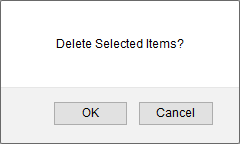
- When the message box appears, asking if you want to delete the selected item(s), click OK.
If the user has created a case or has been attached to a case in any way, you can safely remove the user profile from use by following these steps:
- Open PLL Admin.
- On the PLL Admin page, select External Users from the Public Access Setup section of the menu panel at the left side of the screen.
- On the main panel, click Edit next to the user profile you wish to remove.
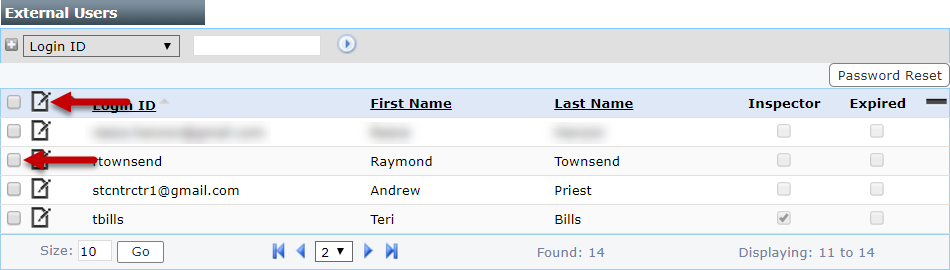
- When the Edit: Users panel opens, select the Expired check box.
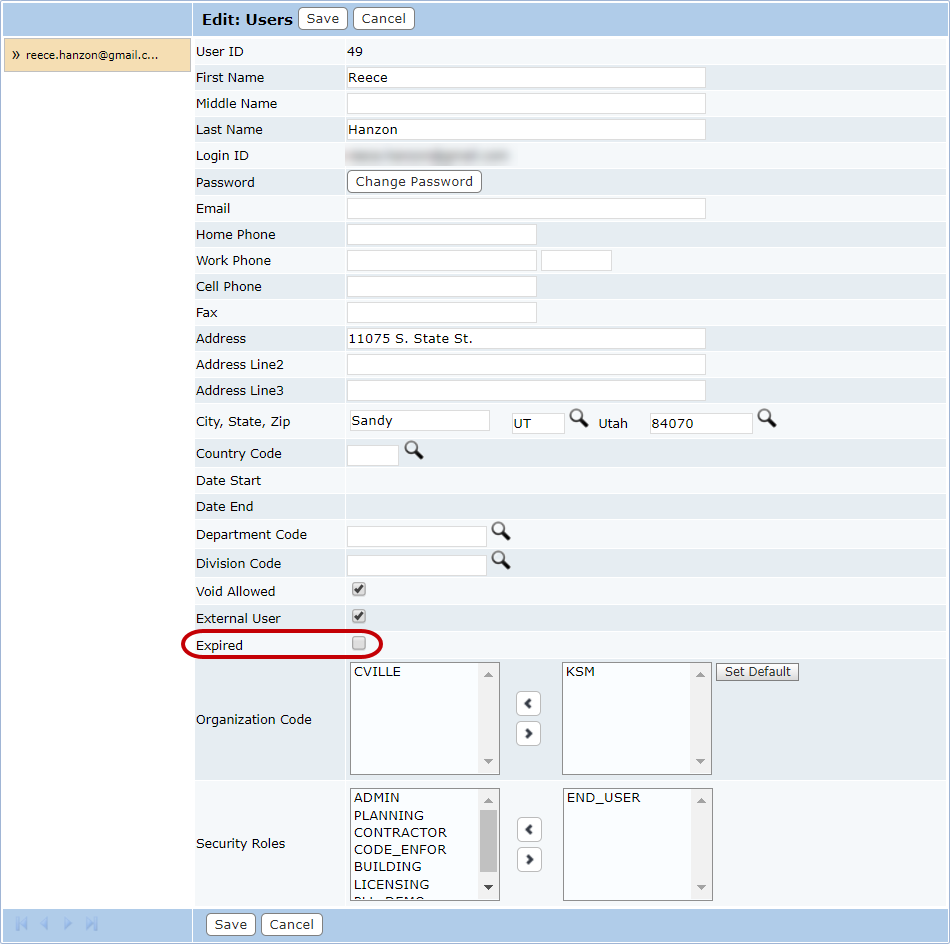
- Click Save.

Documentation Feedback Form
Please give us feedback about this Cityworks guide.
If you have a feature enhancement request, please see the Ideas page on MyCityworks.
Last updated 2/4/2020.
Copyright© 2010–2019 by Azteca Systems, LLC. All rights reserved.