Allow Guest Access in Public Access
PLL administrators can allow guest users to create cases in Public Access.
|
|
 PREREQUISITES:
To allow guest users to create cases in Public Access, follow these steps:
- Using File Explorer, open the WebAppSettings.config file located at C:\inetpub\wwwroot\<site_name>\PublicSite\.
- Open the file in your preferred text editor or coding software.
- In the add key="AllowGuestAccess" tag, change the value attribute from "false" to "true".

- If you are using reCAPTCHA, make sure the add key="RequireCaptcha" value is set to "true" and the key and secret key values are set. See Enable reCAPTCHA for Public Access for more information.
- Save the WebAppSettings.config file.
- In PLL Admin, navigate to System Tools > Preferences > Public Access > Notifications and click the lookup icon to select a notification type to send when a guest user creates a case.
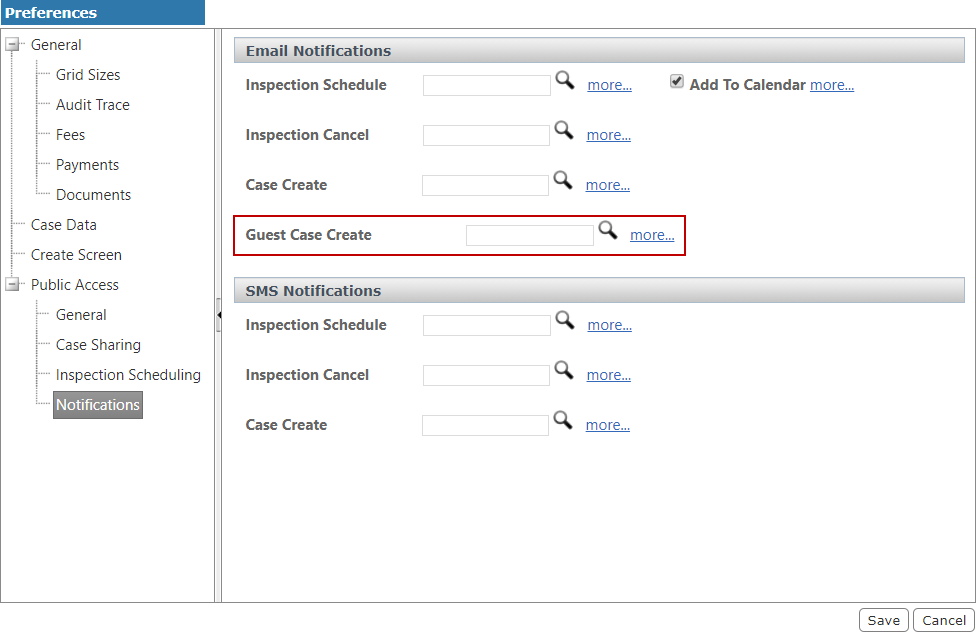
- Click Save.