Add a Task Notification
This section will discuss how to configure a new task notification.
|
|
 PREREQUISITES:
To add a new task notification, follow these steps:
- Click Notifications on the PLL Admin menu panel and select Case Notifications.

- On the Task Notification panel, click Add record at the top of the panel.
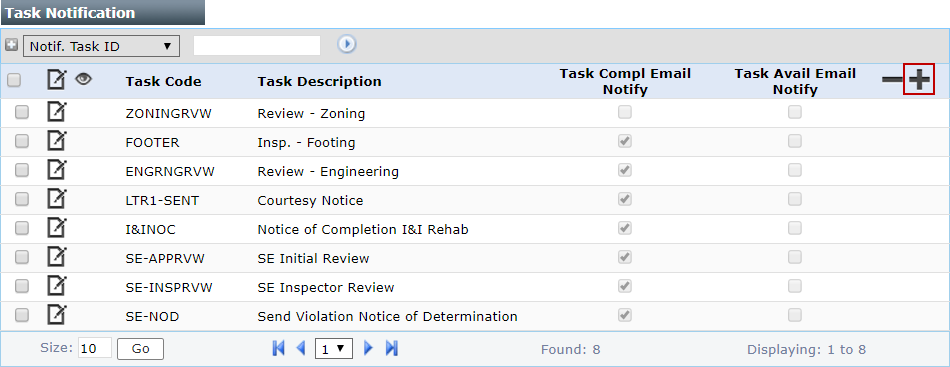
 NOTE: Search or filter the records on this panel to quickly find the one(s) you want. See Search and Filter Records for more information.
- When the Add: Task Event Notification panel opens, click Lookup next to the Task Code field to select the task the notification will apply to.
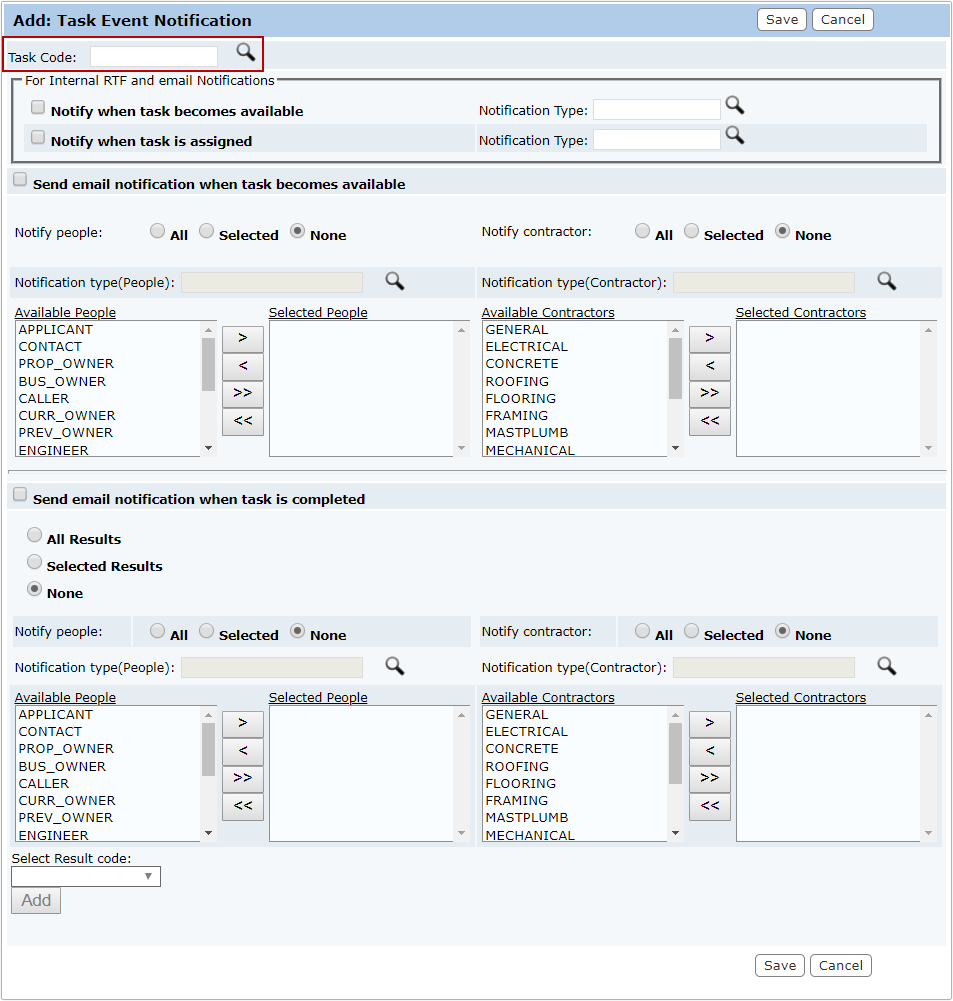
 For Internal RTF and email Notifications
This section allows you to configure notifications for employees associated with the case or task when the task becomes available or is completed.

- Select the check boxes next to the notification options you wish to use. You may select one or both of these options.

- Click Lookup next to the Notification Type field for the option(s) you selected to select a notification type.
- Click Save.
Send email notification when task becomes available
-
Select the check box next to Send e-mail notification when task become available.
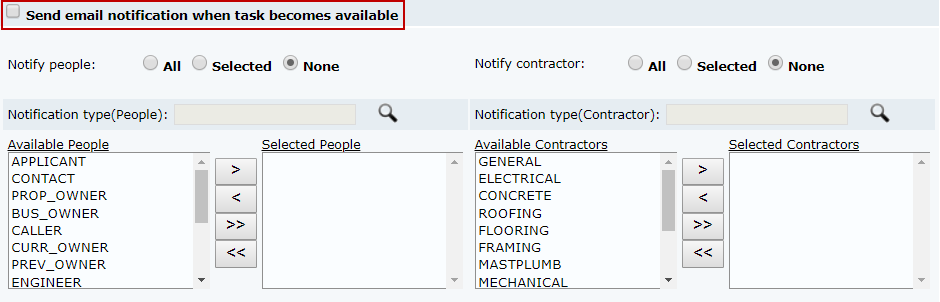
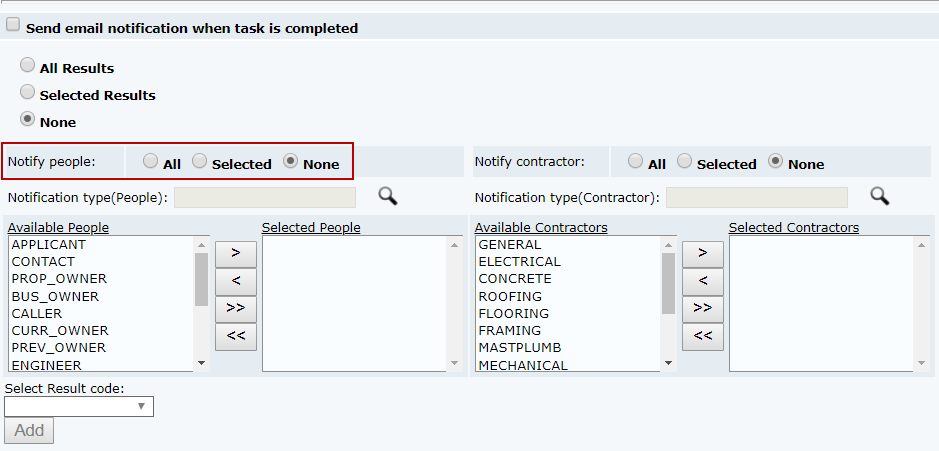
- Next to Notify people, use the option buttons to indicate if all people roles, selected people roles, or no people roles associated with the task will be notified.

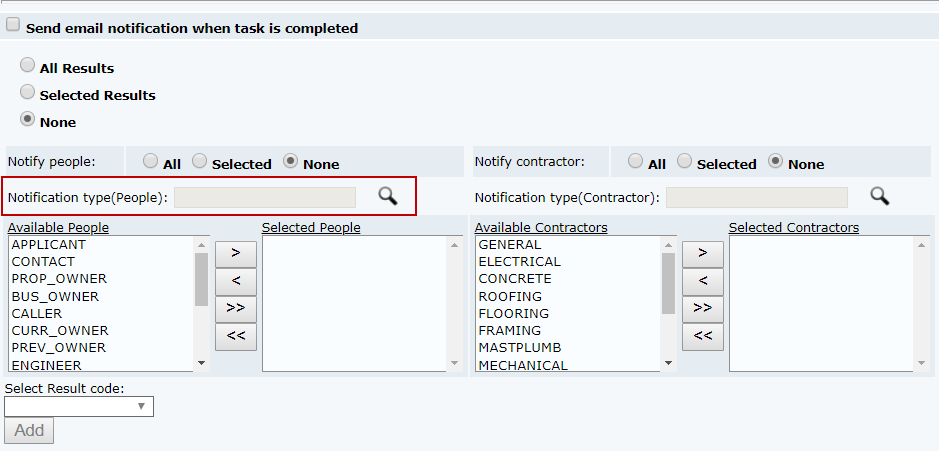
- Click Lookup next to the Notification type(People) field to select the notification type that will be sent to the specified recipients.
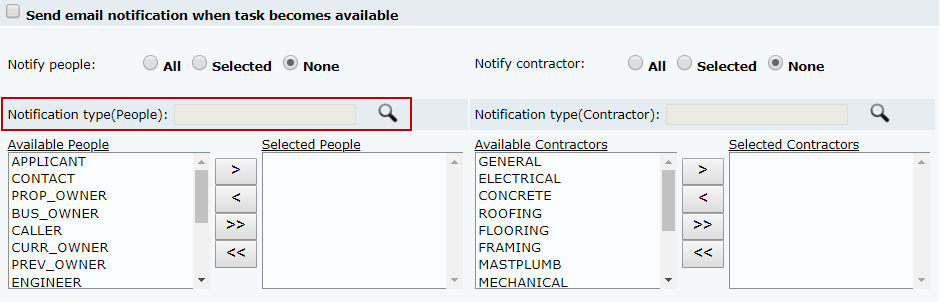
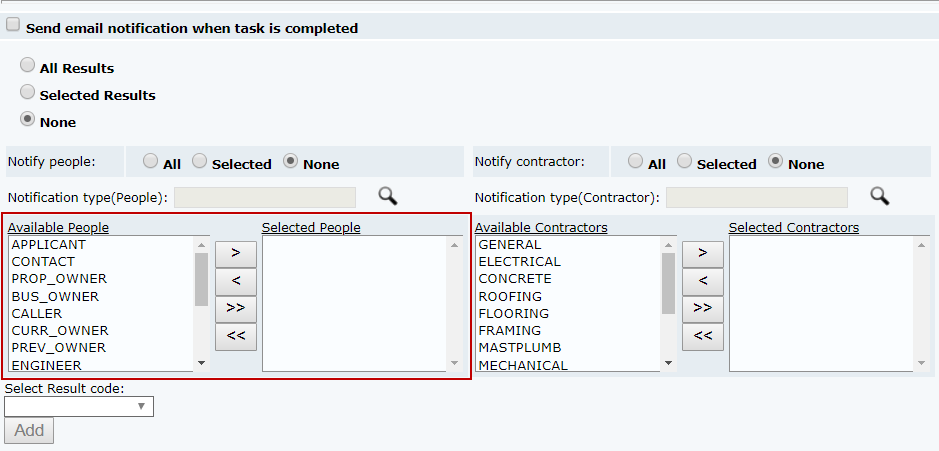
- If you chose the Selected option buttons, select the people roles you wish to notify from the Available People field and click > to add them to the Select People field.
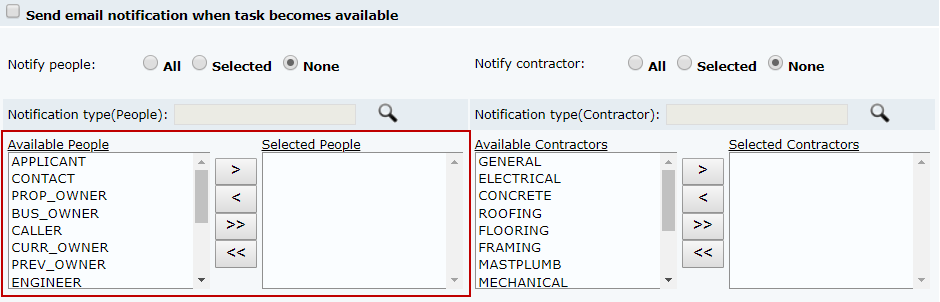
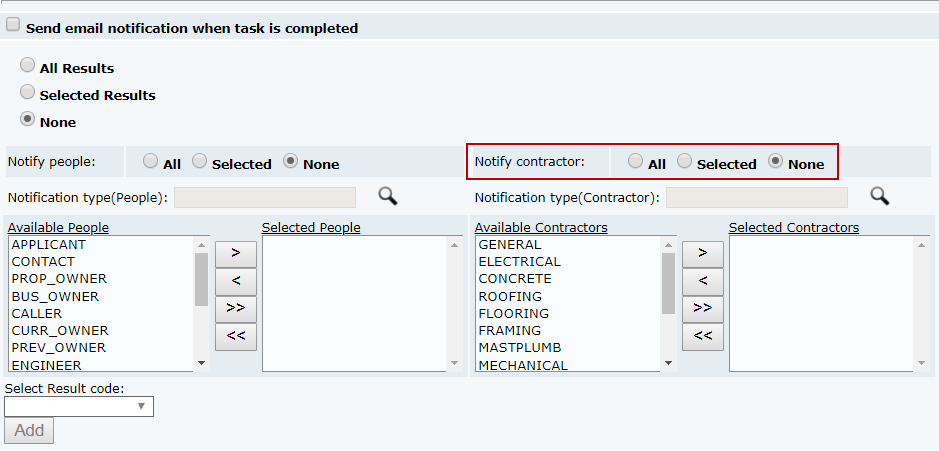
- Next to Notify contractor, use the option buttons to indicate if all contractor types, selected contractor types, or no contractor types associated with the task will be notified.
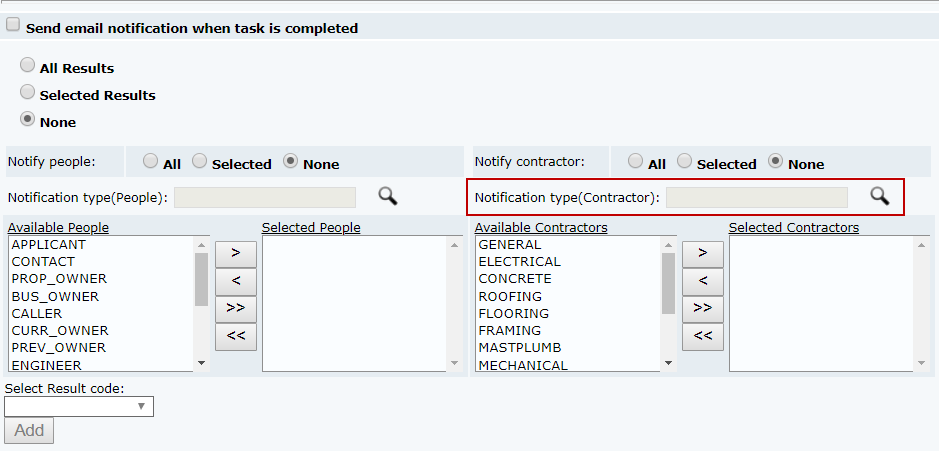
- Click Lookup next to the Notification type(Contractor) field to select the notification type that will be sent to the specified recipients.
- If you chose the Selected option buttons, select the contractor types you wish to notify from the Available Contractors field and click > to add them to the Select Contractors field.

- Click Save.
Send email notification when task is completed
- Select the check box next to Send email notification when task is completed.
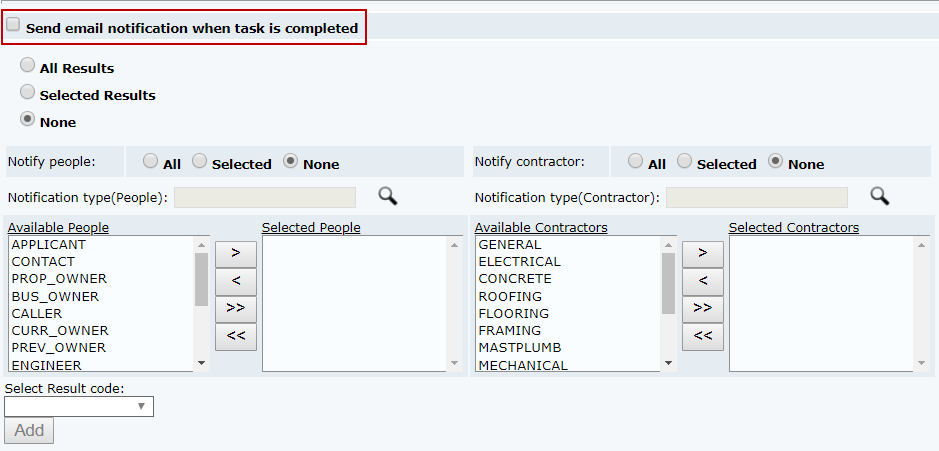
- Select whether all result codes, selected result codes, or no result codes will cause the notification to be sent.
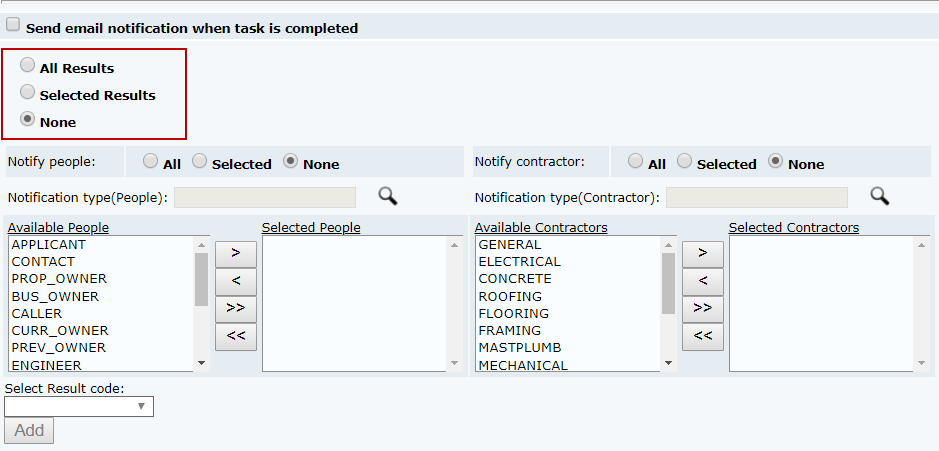
- Next to Notify people, use the option buttons to indicate if all people roles, selected people roles, or no people roles associated with the task will be notified.
- Click Lookup next to the Notification type(People) field to select the notification type that will be sent to the specified recipients.
- If you chose the Selected option buttons, select the people roles you wish to notify from the Available People field and click > to add them to the Select People field.
- Next to Notify contractor, use the option buttons to indicate if all contractor types, selected contractor types, or no contractor types associated with the task will be notified.
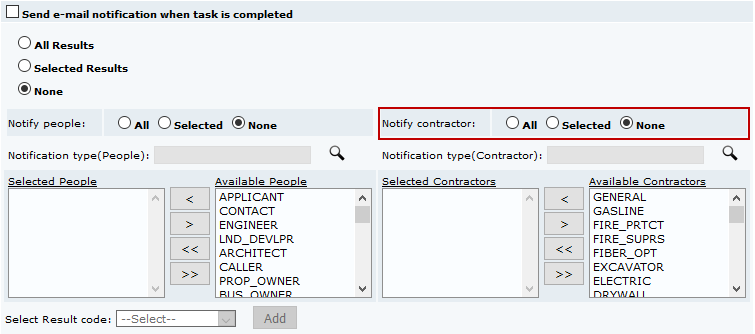
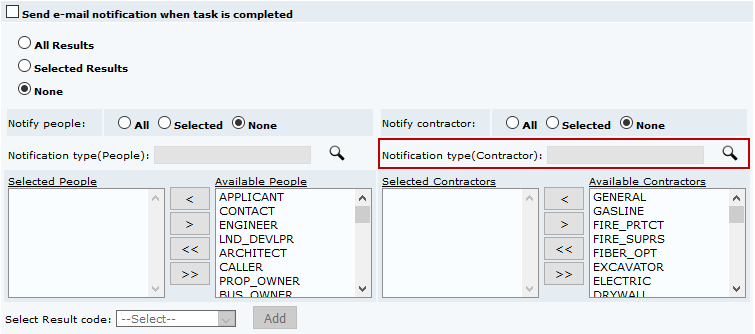
- Click Lookup next to the Notification type(Contractor) field to select the notification type that will be sent to the specified recipients.
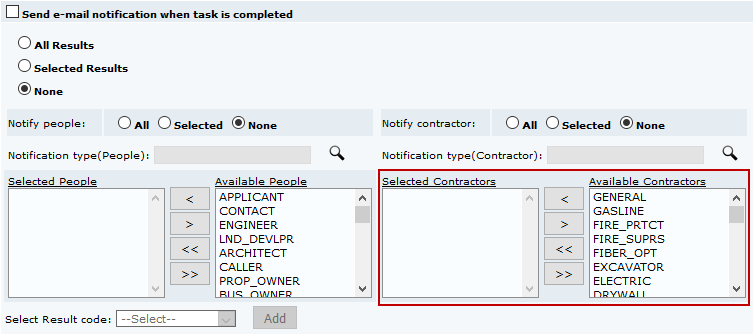
- If you chose the Selected option buttons, select the contractor types you wish to notify from the Available Contractors field and click > to add them to the Select Contractors field.
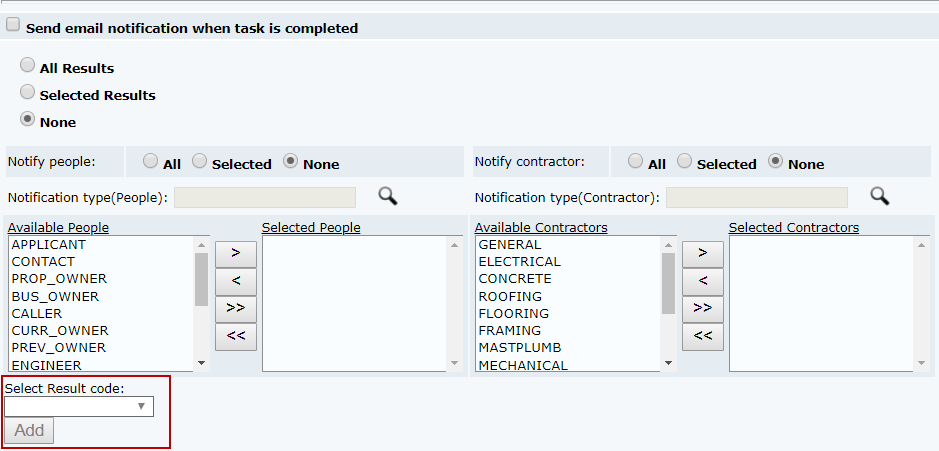
- If you chose Selected Results, use the Select Result code drop-down list to choose a result code that will trigger the notification, then click Add.
- Click Save.