View an Asset on a Work Order

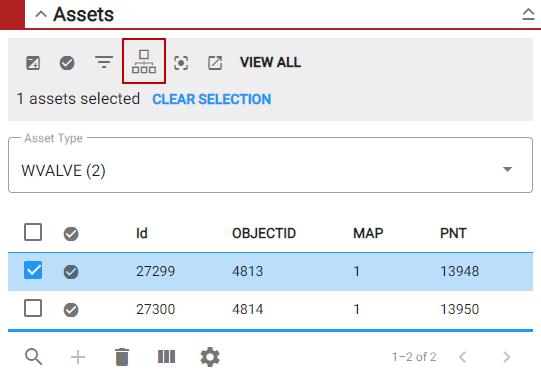
The Assets panel lists all assets attached to a work order and has two views: one that shows all assets and one that shows a single asset type. The number of total assets is listed at the bottom of the panel.

  1. Open a work order.
  2. Scroll to the Assets panel.

Any assets attached to the work order displays.
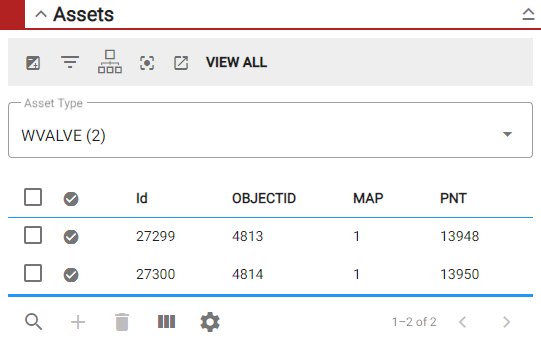
  1. Tap View All to view all the assets attached to the work order. Tap By Type to view a specific type of asset, such as a water main.

NOTE: If you're viewing assets By Type, select the asset from the Asset Type drop-down list.
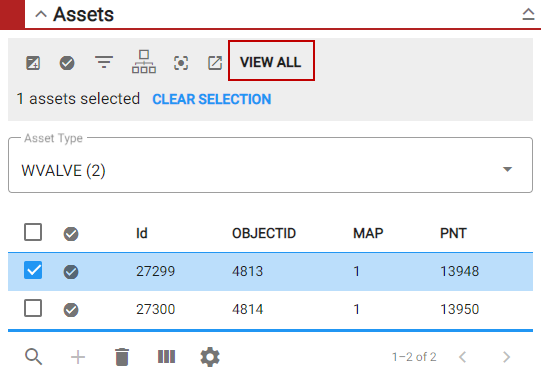
  1. Tap Filter records to quickly search the list for a specific asset.
  2. Tap Column Menu to modify the columns shown in the panel by clearing the check box for the column name. In the panel, you can tap and drag a column to the right or left of another column to change the order of the columns. The app remembers the order of columns when you log in.
  3. Tap the gear icon to change the number of rows viewed at a time in the panel.
  4. If you want to view or edit attributes of the asset, select the check box to the left of the asset.
  5. Tap the Asset Details icon to open the Asset Details page. See Asset Details for more information.

NOTE: If needed, tap the invert selection icon to switch between selected assets. See Highlight Selected Assets on the Map for more information. See Assets Panel Fields for an explanation of the Assets panel fields.