Add a Condition
Conditions are requirements or restrictions attached to a case. Cases can be set up so that certain conditions must be completed before the case can be approved or be put on hold and kept from progressing until the conditions are met. For example, a business owner may be required to meet certain conditions in order to maintain their business license.
Depending on how the administrator has configured the template, certain conditions might already be on the case. They are listed
- To add a condition to the case,
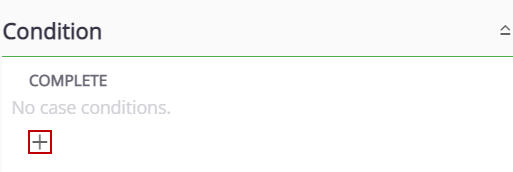
The Add Condition panel opens.
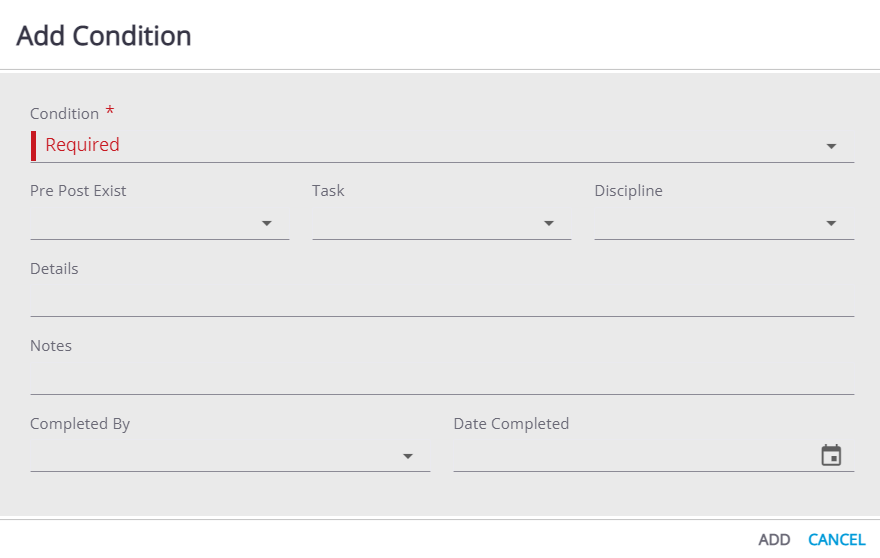
- Select the condition you wish to add
- Select Pre, Post, or Exist from the Pre Post Exist drop-down list to indicate when the condition must be met.
- Select a Task and Discipline.
- Enter any Details or Notes related to the condition.
 NOTE: The Completed By and Date Completed fields are used to mark the condition as complete. For more information, see Complete a Condition.