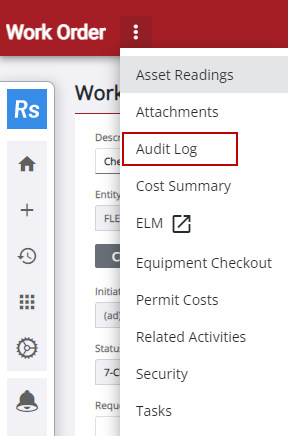
View the Audit Log

The audit log shows any changes made to the work order. The domain administrator determines which fields are tracked in Designer or Admin.

  1. Open a work order.
  2. Tap Audit Log from the Work Order menu.

The Audit Log displays fields configured in Designer or Admin by the administrator. See Configure the Audit Log in the Admin 2.2 Guide for more information.
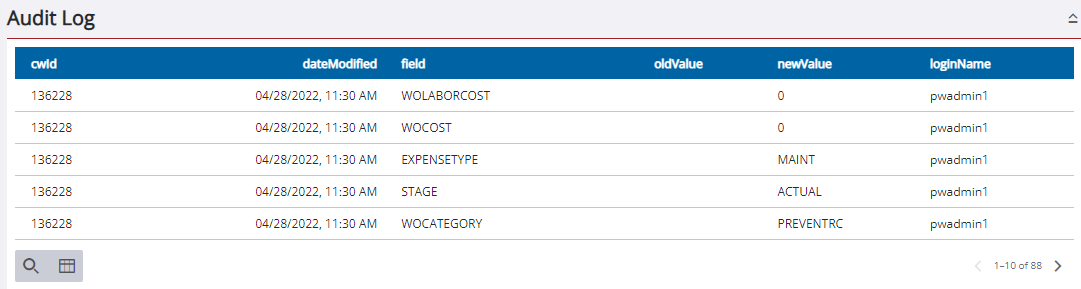
  1. Tap Filter records to quickly filter the list of fields in the panel.
  2. Tap Column Menu to modify the columns visible in the panel by clearing the check box for the column name. In the panel, tap and drag a column to the right or left of another column to change the order the columns are viewed. The app remembers the order of the columns when you log in.

  3. Tap Work Order in the upper-left corner of the page at any time to return to the main work order page.