Task Manager Fields
 TIP: A yellow dot by an option along the bottom of each task indicates there is a record available for that option.
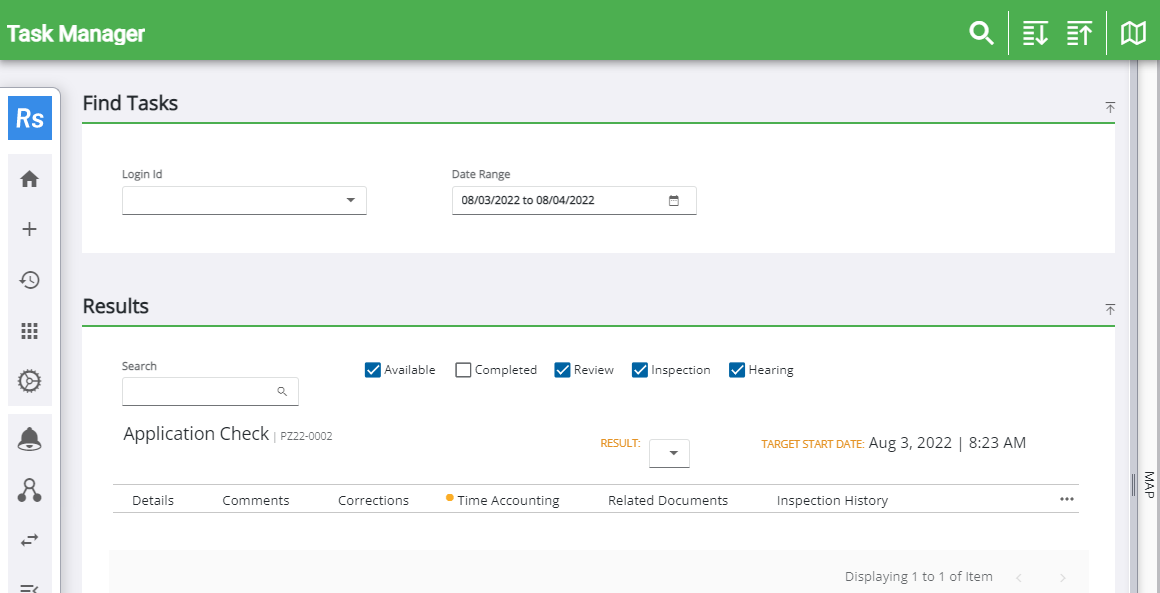
Find Tasks
- Login Id: This field automatically displays the login ID of the current user. This field can be changed by choosing another user
- Date Range: Select the calendar icon. A panel opens and defaults to today's date, but can be changed.
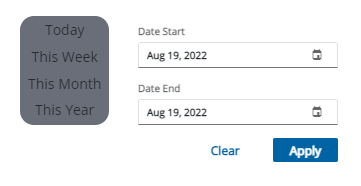
- Today: This shows any tasks with a target start date of the current date.
- This week: This shows any tasks with a target start date of the last day of the current week.
- This Month: This shows any tasks with a target start date of the last day of the current month.
- This Year: This shows any tasks with a target start date of the last day of the current year.
- Date Start and Date End: Use the calendar icon next to the fields to select a custom time period. This shows any tasks with a target start date within the selected date range.
Results
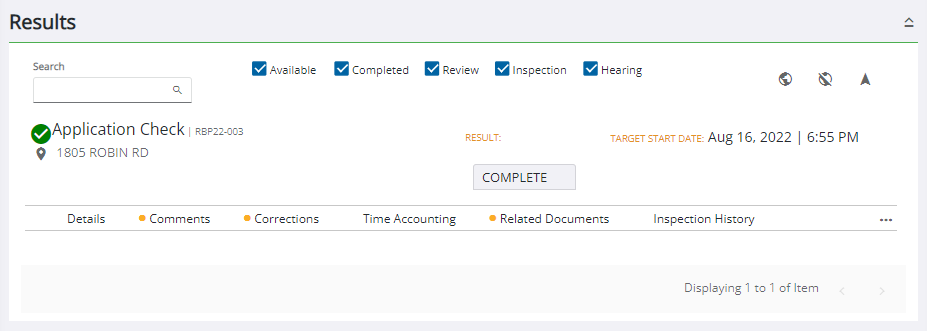
- Search: Begin typing in the search field to narrow the result list.
- Available:
-
- Review: Select to show Review task types in the results.
- Inspection: Select to show Inspection task types in the results.
- Hearing: Select to show Hearing task types in the results.
- Add map pins: With the map open, select this to add pins to the map for the task.
- Remove map pins: With the map open, select this to remove any pins on the map.
- Navigate to x tasks: When you select this with the map open, Respond prompts you to open the map's routing tool, which gives you a route using the task data. See the Routing section for more information.
- Result: Select a result for the task from the drop-down list.
Details
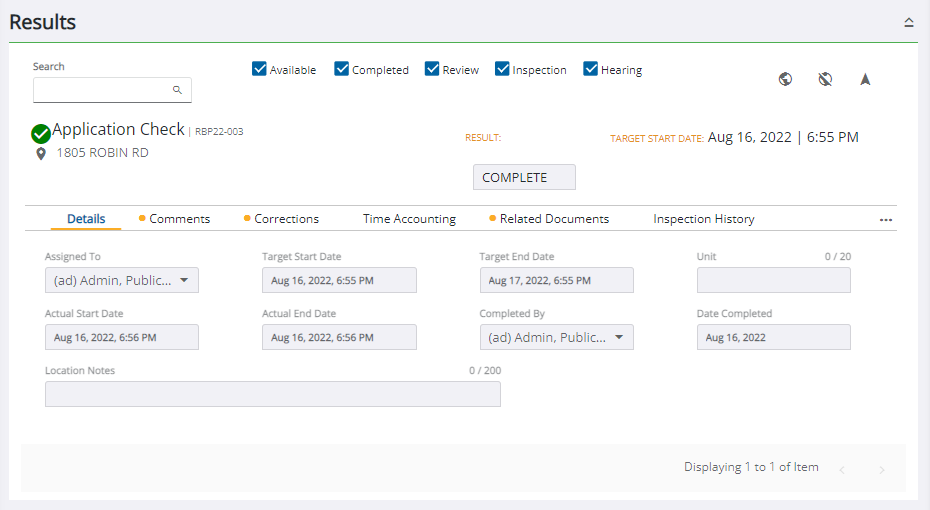
- Assigned To: This automatically populates with the employee assigned to the task. To change the employee,
- Target Start Date: This field automatically displays the estimated start date and time of the task.
- Target End Date: This field automatically displays the estimated completion date and time of the task.
- Unit: This allows you to specify a location by entering a unit number.
 NOTE: The Assigned To and Target End Date fields can be changed at any time because they are saved independently of the task result.
- Actual Start Date: Enter the actual start date for the case.
- Actual End Date: Enter the actual finish date for the case.
-
- Date
- Location Notes: This allows you to specify a location by entering notes about the exact location of the case.
- Comments:
- Corrections:
- Time Accounting:
- Related Documents:
- Inspection History:
- Related Activities:
- Task Reports: