Add a Task
Tasks are used to track the progress of work that must be done before the work order can be considered complete. If the administrator has configured tasks on the work order template, they are automatically added to the work order when it is created. Users can also add tasks to the work order. See
- Open a work order.
-


- Select a task using Task Leaf or Work Order Template Task.
 TIP: You can filter the list of records displayed. See Filter Records for more information.
- Select the task(s) you want to add.
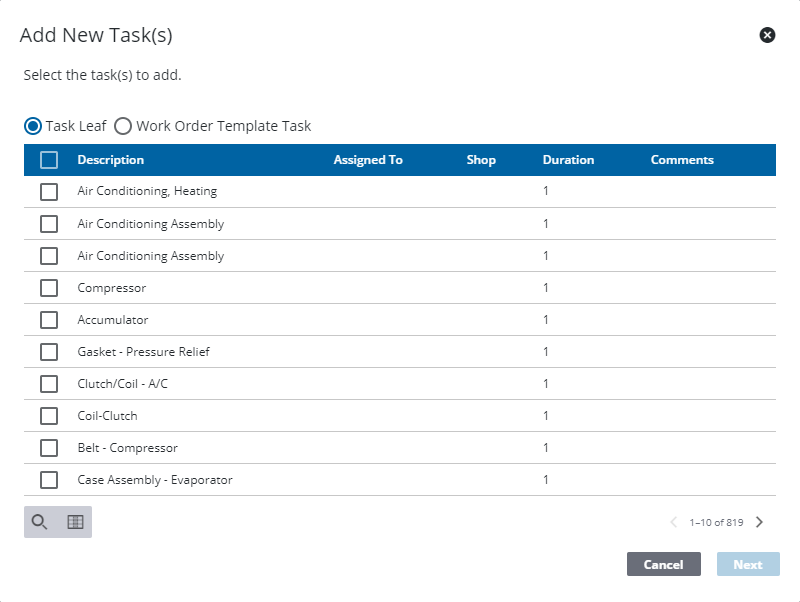
TIP: You can filter the list of records displayed. See Filter Records for more information.
- Select an asset associated to the work order to associate the task to.
 NOTE: When a task is associated to an asset and the labor cost is added to the task, the labor cost will be associated to both the asset and the task.
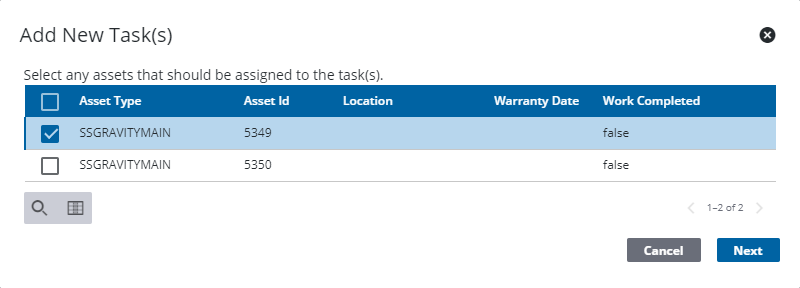
-
- Enter any information related to the task.
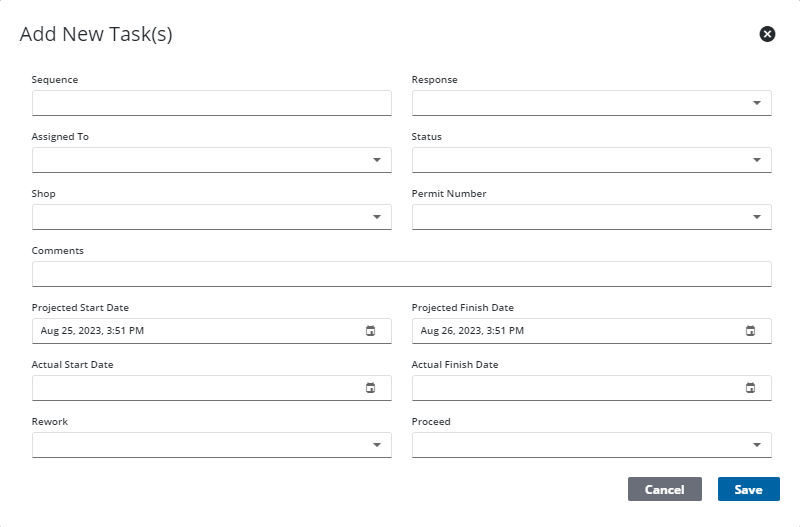
The task is added to the Work Order Tasks panel.
NOTE: Fields on this section may vary depending on the task chosen. See Add New Task(s) Panel Fields for an explanation of fields.

