Mark Work as Complete
Work on an asset can be marked as complete and outstanding work on an asset can be viewed.
- Open a work order.
-
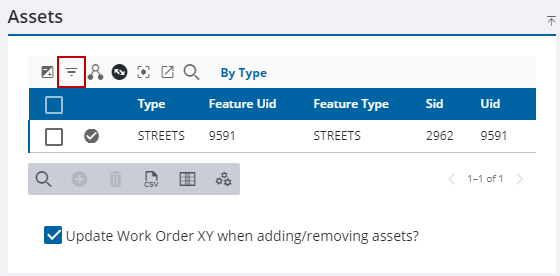
 TIP: You may need to switch the asset view by
Work on all assets can be marked as complete.
- To mark an individual asset as complete,
- To mark all assets as complete, select all assets and
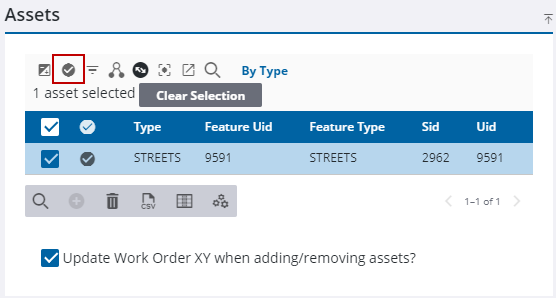
See Assets Panel Fields for an explanation of the Assets panel fields.