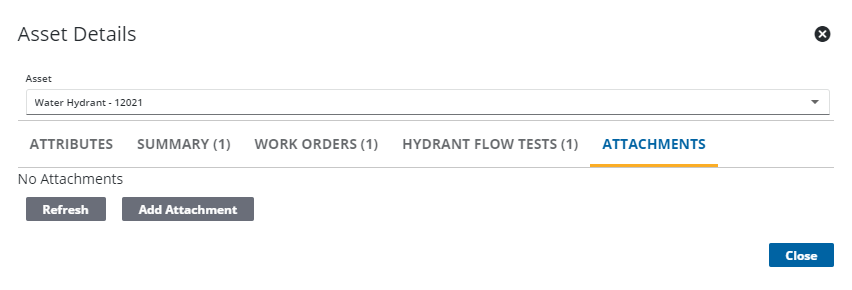
View and Add GIS Attachments
GIS attachments can be viewed on the Attachments tab. In order for them to display, the Cityworks site must be configured with Single Sign-on and the asset layer needs to come from a feature service that has attachments enabled. GIS attachments can viewed for features or related objects.
- Open the Asset Details page.
 TIP: You can filter the list of records displayed. See Filter Records for more information.
- Select an asset or multiple assets from the Assets panel.
-
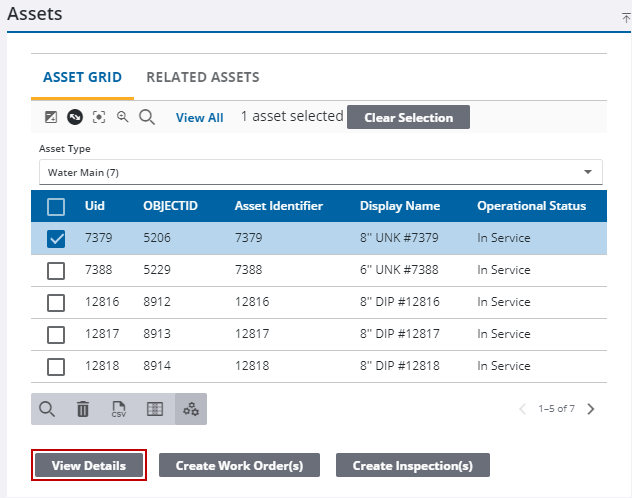
- Select the desired asset from the Asset drop-down list to view its attributes and work history.
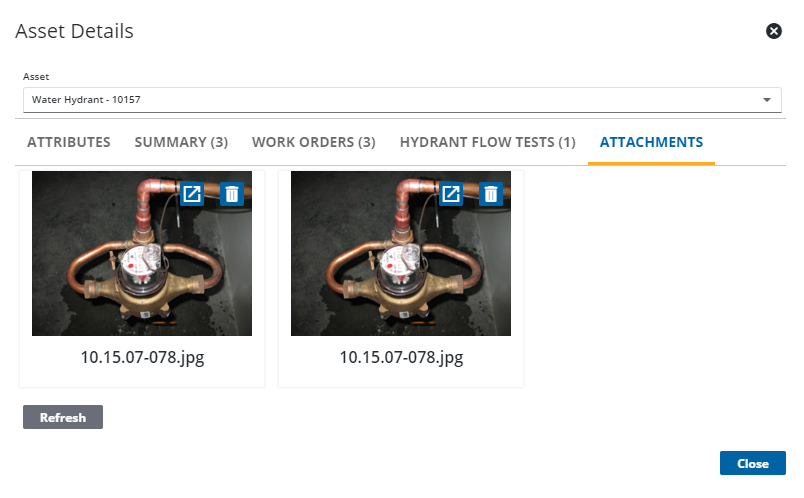
If there are attachments associated with the asset, you can open or remove them.
If there are no attachments you can add them to the asset.