Remove a Payment
Payments can only be removed from a case using the Payment Utility tool.
|
|
 PREREQUISITES:
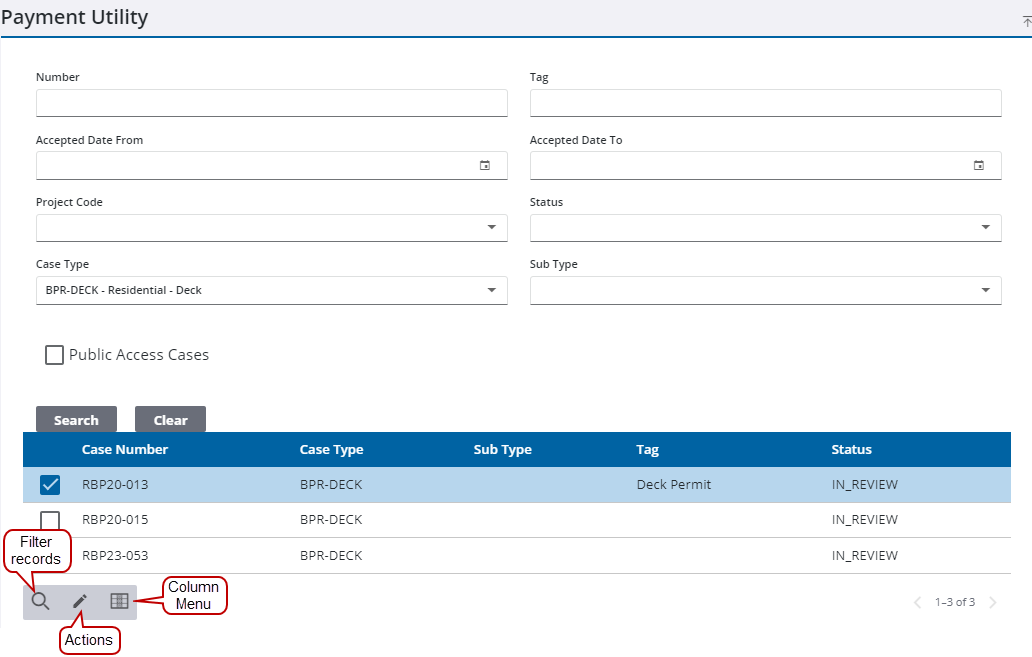
- Open the Payment Utility tool.
- Enter search criteria, such as the case number, case type, or status in the corresponding fields.
-
Results matching your search criteria display below the search form.
- Select the desired case to update.
-
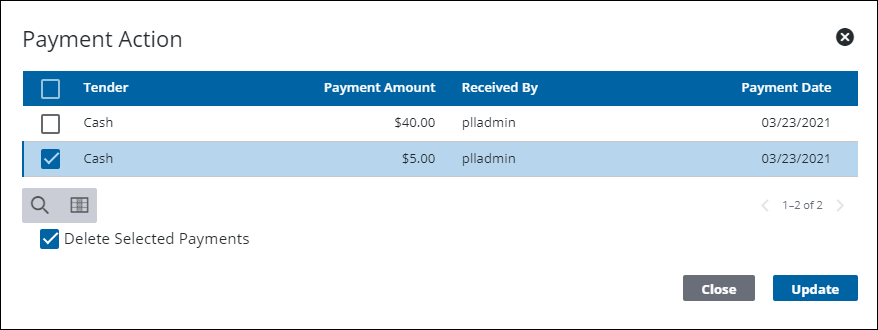
The Payment Action panel opens.
- Select one or more payments made on the case.
- Select Delete Selected Payments.
-
See Payment Utility Fields for an explanation of the Payment Utility panel fields.
.