Receive an Assembly
The Build Assemblies page receives assembled materials into the storeroom to be issued. Receiving finished assemblies is performed by storeroom and can be specific to a location within the storeroom. Once an assembly is received, the assembly quantity will be increased, and the individual assembly parts quantities will be decreased.
|
|
 PREREQUISITES:
- Tap Build Assemblies from the menu.
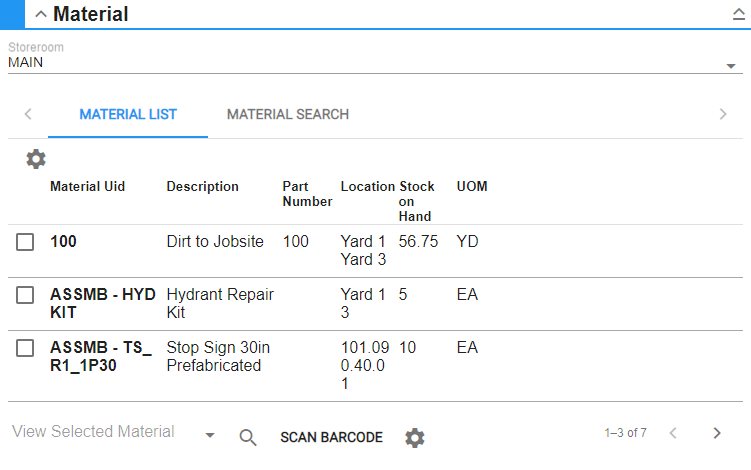
- On the Material panel, select a Storeroom from the drop-down list. This changes the list of materials. Materials can only be selected from one storeroom at a time.
-
Select materials from the list. See Search Materials for more information on using the search tabs to find materials.
- Enter the information in the Build Assemblies panel.
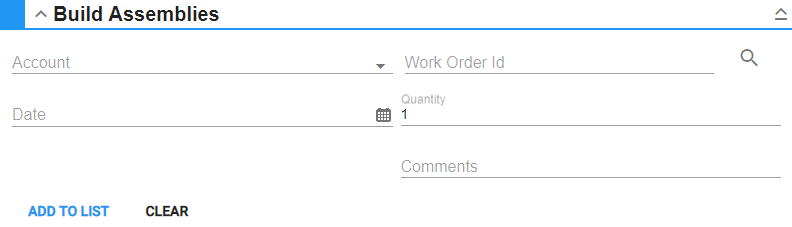
For an explanation of the fields found on the Build Assemblies panel, see Build Assemblies Fields.
- Tap Add to add the material to the Pending Assemblies
You can filter the material in the list by tapping the
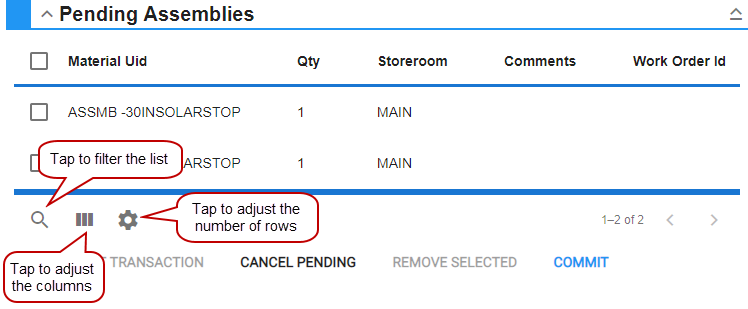
You can modify the Pending Assemblies panel in one of the following ways:
-
- Tap the gear icon to adjust the number of rows shown in the panel. The number set in this panel will persist on all other transaction pages for the corresponding pending material panel.
- To view the materials that make up the pending assembly, tap View Children.
- If you would like to add other assembled materials, tap Clear in the Build Assemblies panel to clear the fields and add another assembly to the list.
- To remove one of the records from the Pending Assemblies list, select the record and tap Remove Selected.
- Tap Commit to complete the transaction and receive the assembly into the storeroom. When Commit is tapped, a receive transaction is created for each assembly material.
 NOTE: Use Audit to override assembly costs if needed. If the cost of assembly parts is adjusted through an audit, it will not change the assembly cost. This had to be done in Material under Config, but the assembly can have its unit cost adjusted when performing an audit.
The assembly can then be issued to work orders, accounts, and/or employees from the Issue page. See Issue Material for more information.