Save a Search
Saved searches are helpful for searches that are frequently performed in Storeroom and can be displayed in the Cityworks inbox. See
- Click Requisition on the Storeroom toolbar.
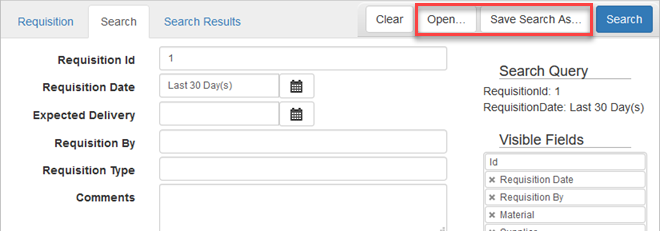
- Click the search tab on the Requisition panel.
- Enter the desired search criteria that you'd like to save as a search.
- Click Save Search As.
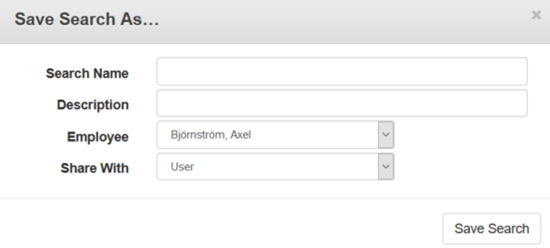
- Enter the Search Name you want to save the search as.
- Enter a Description of the search.
- Use the Employee drop-down list to select an employee.
 NOTE: This is only visible to domain administrators.
- In the Share With drop-down list, select either Domain, Group, or User to specify who will be able to view this saved search.
- Click Save Search to save the information entered.
See View or Edit a Saved Search to view or edit the search.

Documentation Feedback Form
Please give us feedback about this Cityworks guide.
If you have a feature enhancement request, please see the Ideas page on MyCityworks.
Last updated 1/3/2020.
Copyright© 2014–2019 by Azteca Systems, LLC. All rights reserved.