Clone a Material
Material can be cloned from existing material.
|
|
 PREREQUISITES:
- Tap Configure from the menu.
- Tap Material.
The Material panel lists all materials. You can filter the material in the list by tapping Filter records and entering the first few letters or numbers of the material name. Tap Rows to adjust the number of rows shown in the panel. The number set in this panel, will persist on all other administrative pages.
- Select the material you wish to clone.
- Tap Clone selected item.
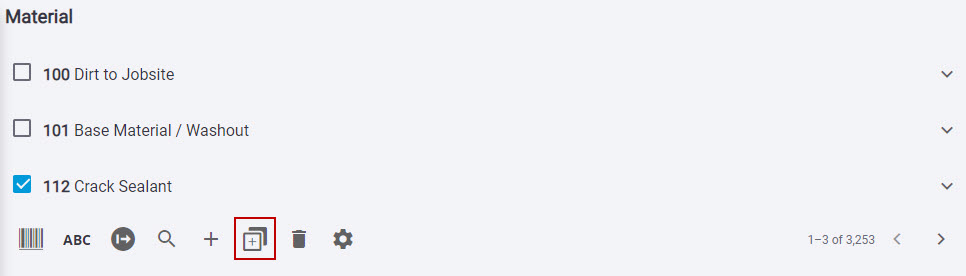
The Clone Material panel opens and populates fields with the information from the material.
- Edit any details that are different from the original material.
- Select Clone storeroom-material relationships and Clone supplier-material relationships to have the material assigned to the same storeroom and supplier as the original material.

- Tap Create Material.
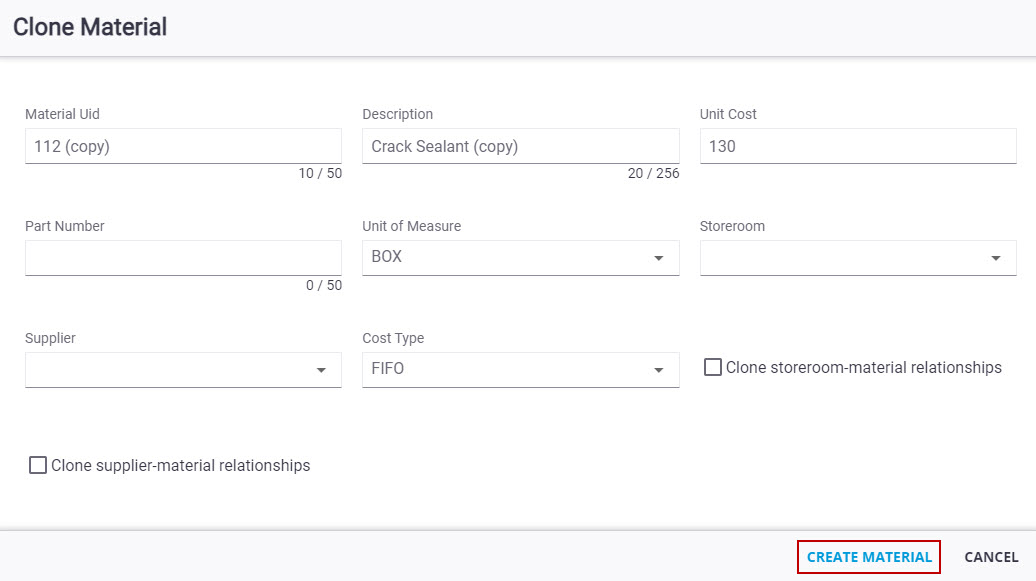
 NOTE: Some fields have character max limits. The first number is the current count of how many characters have been used. The second number is the max characters allowed in the field.
- To finish adding the material, tap the arrow to the right of the material name to reveal the details.
- Enter the material information in the Details, Image, Attachments, Keywords, Assembly Parts, Equipment, and Labor panels.
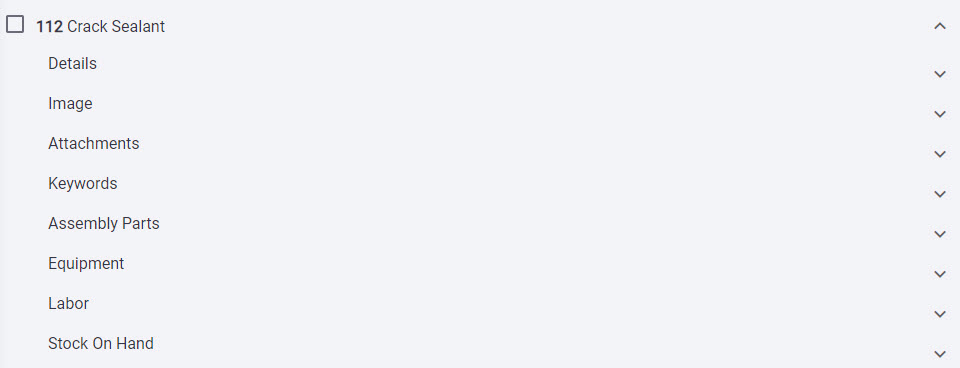
For an explanation of the fields found on this page, see Material Details Fields.
See Edit a Material, Add Serialized Material, Add an Image to a Material, Add an Attachment to a Material, Add a Keyword to a Material, Add Assembly Parts to a Material, Add Equipment to a Material, and Add Labor to a Material for more information.
NOTE: Storeroom automatically saves the changes you make. A notification will appear at the bottom of the window that says Material Successfully Created when you make changes to the page.