Receive Material from a Supplier
You can receive material from a supplier.
- Tap Receive from the menu.
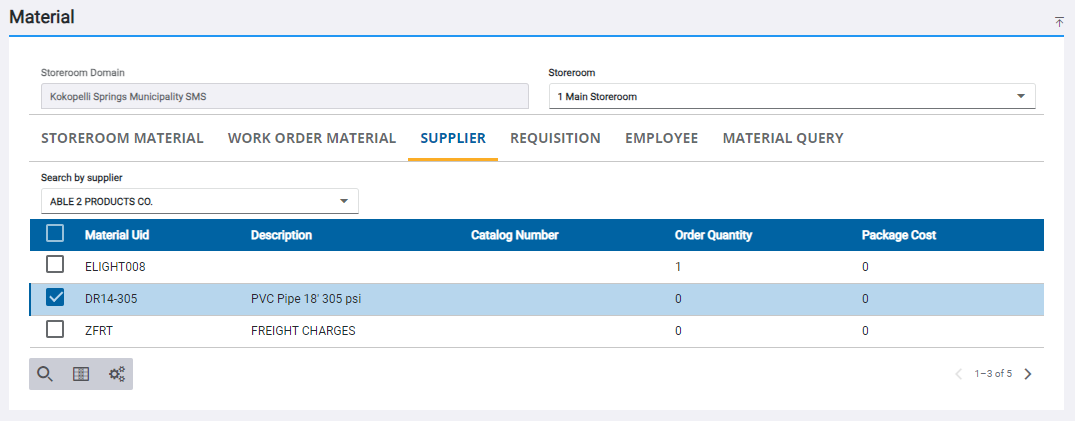
- Tap Supplier on the Material panel.
- Select a supplier from the Search by Supplier field.
The materials associated with the supplier appear in the list.
 TIP: You can filter the list of records displayed. See Filter Records for more information.
- Select one material from the list. See Search Materials for more information on using the search tabs to find materials.
- Enter the information in the Receive panel to receive the material, including the Quantity and Unit Cost fields which are required to receive material.
For an explanation of the fields found on the Receive panel, see Receive Transaction Fields.
- Tap Add to List to add the materials to the Pending Receives panel.
The material is added to the Pending Receives panel. See Navigate the Pending Receives Panel for more information.
- Tap Commit on

- Tap Sign or Close on the Transaction Complete panel.
If you don't wish to sign the transaction now, see Capture a Signature on an Existing Receive Transaction for more information.