Mark Up an Attachment
You can mark up an attachment that has been captured or uploaded from your photo library to a work order.
-
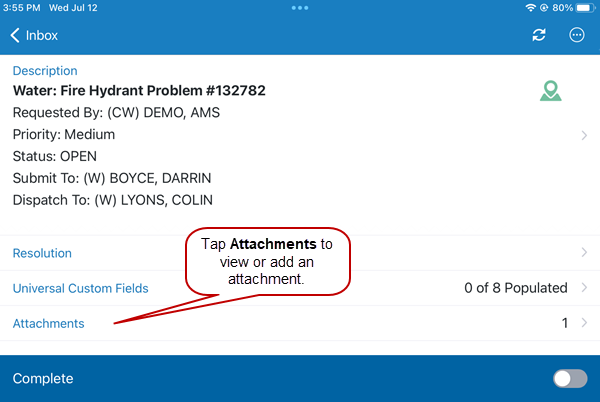
Open a work order.
-
-
Add an attachment. See Add an Attachment for more information.
-
Select the attachment you added.
-
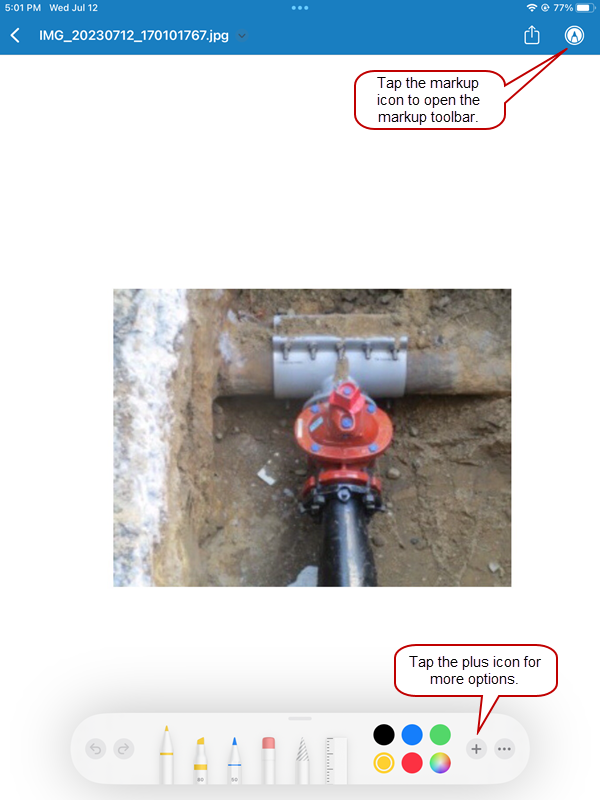
 IMPORTANT: The markup icon only appears for image attachments added before syncing the mobile app. When the mobile app is synced, any existing images cannot be marked up within the app.
-
Choose a markup tool and mark up the attachment as needed.
-
To undo a markup,
-
Once you are done marking up the image,