Reset an Employee's Password
Administrators can change an employee's password, if needed. For example, if a user enters the wrong password to log in enough times they are locked out until they wait the allotted time. The user can click Forgot Password? to set a new password themselves, or the administrator can reset their password. See Reset Your Password for more information.
 TIP: You can filter the list of records displayed. See Filter Records for more information.
- Select the employee from the Employees panel and click the General tab.
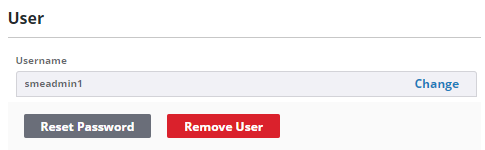
- In the User section, click Reset Password.
- Enter the Password.
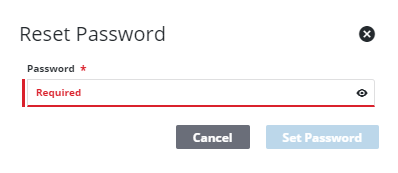
- Click Set Password.
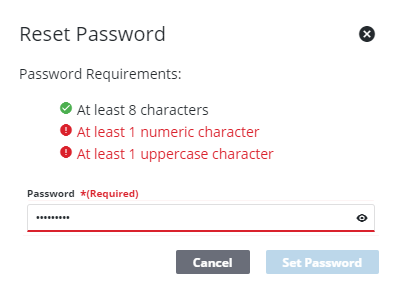
If any password requirements have been set by the administrator, the user sees all of the requirements they must meet while creating a password, as well as an X or a green check mark to indicate whether or not the password is acceptable. You cannot click Set Password until the password meets the requirements set by the administrator. See Configure Global Preferences for more information.
An employee can also change their password under User Preferences. See Change User Security Settings in the Designer Office Companion 23 Guide for more information.

