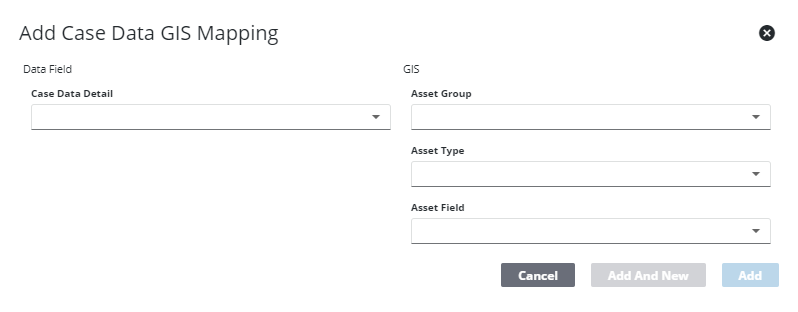
Map Case Data Details to the GIS
Case data details on a case can be configured to automatically populate with data from the GIS.
|
|
 PREREQUISITES:
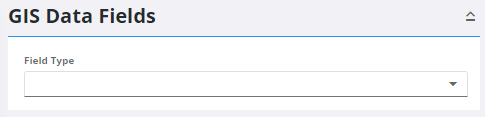
- From the home page, click GIS and click GIS Data Fields.
- Select Data Detail from the Field Type drop-down list.
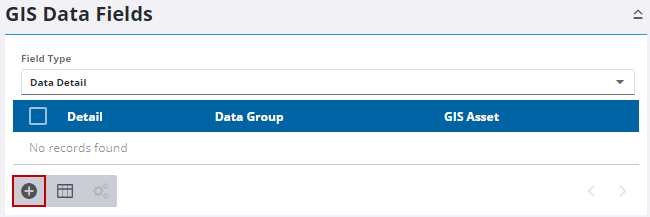
Existing case data details that have been mapped to the GIS appear in the panel.
- Click Add record.
- Select a Case Data Detail.
- Select the Asset Group, Asset Type, and Asset Field that holds the information in the GIS you'd like to pull into the field.
- Click Add or click Add and New to add the mapping and to add a new one.