Add a Person
From the People panel on the
- Open a case.
-
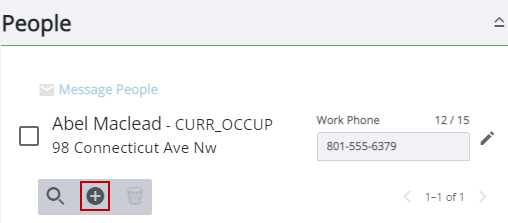
The Add Person panel opens.
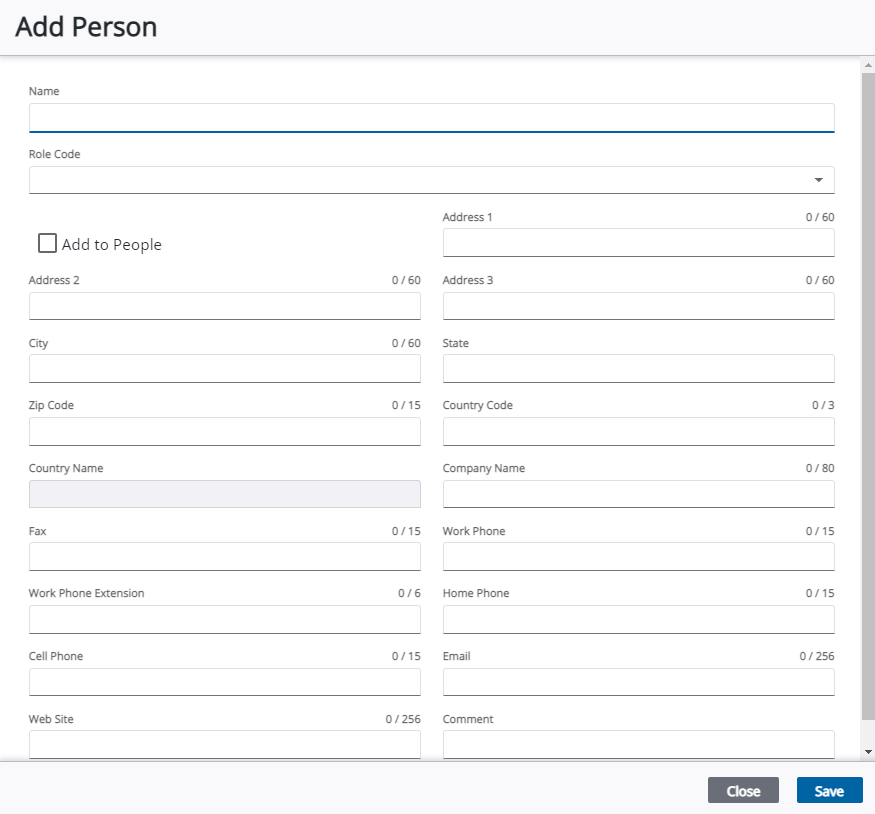
- Begin typing in the Name field to generate a list of names; the more you type, the narrower the list of names becomes.
-
 BEST PRACTICE: We recommend that you assign a role to each person.
 NOTE: One person may have several different roles in a single case. For example, the builder of a residential property can also be the applicant, owner, and occupant. In order to accurately depict each role, the individual should be added to the case for each role they represent. If more than one role code is added, only the first role code selected is displayed in the People panel.
- Enter address, contact information, and comments in the appropriate fields.
NOTE: City, state, and country values may automatically populate when the zip code is entered if the administrator has configured the zip code in PLL Admin. See Zip Code Setup in the PLL Admin for 15.8 Guide for more information.
- Select the Add To People check box to add a new record to the database if the person is not stored in the database.
See Add a Person for more information on adding additional roles using the