Edit a Person's Information
To edit the information of a person associated with a case, complete the following:
- Open a case.
-
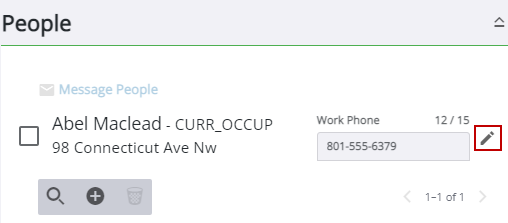
The Edit Person panel opens.
 NOTE: One person may have several different roles in a single case. For example, the property owner of a residential property can also be the applicant, builder, and occupant. In order to accurately depict each role, the individual should be added to the case for each role they represent. If more than one role code is added, only the first role code selected is displayed in the People panel.
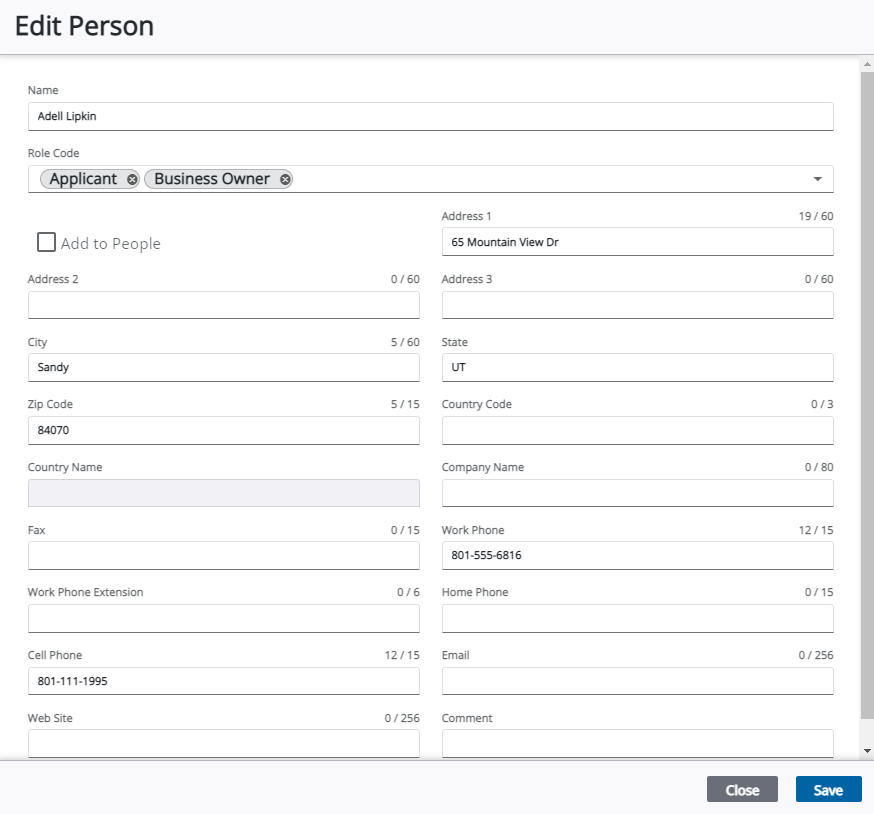
NOTE: If the Add to People check box is selected on the intake page, it's grayed out on the Edit People panel.
NOTE: City, state, and country values may automatically populate when the zip code is entered if the administrator has configured the zip code in PLL Admin. See Zip Code Setup in the PLL Admin for 15.8 Guide for more information.
- Once your edits are made,
See People Panel Fields for an explanation of the People panel fields.