Log In
Use the login page to access Cityworks apps, such as
 NOTE: The log in and landing pages do not currently support language translation.
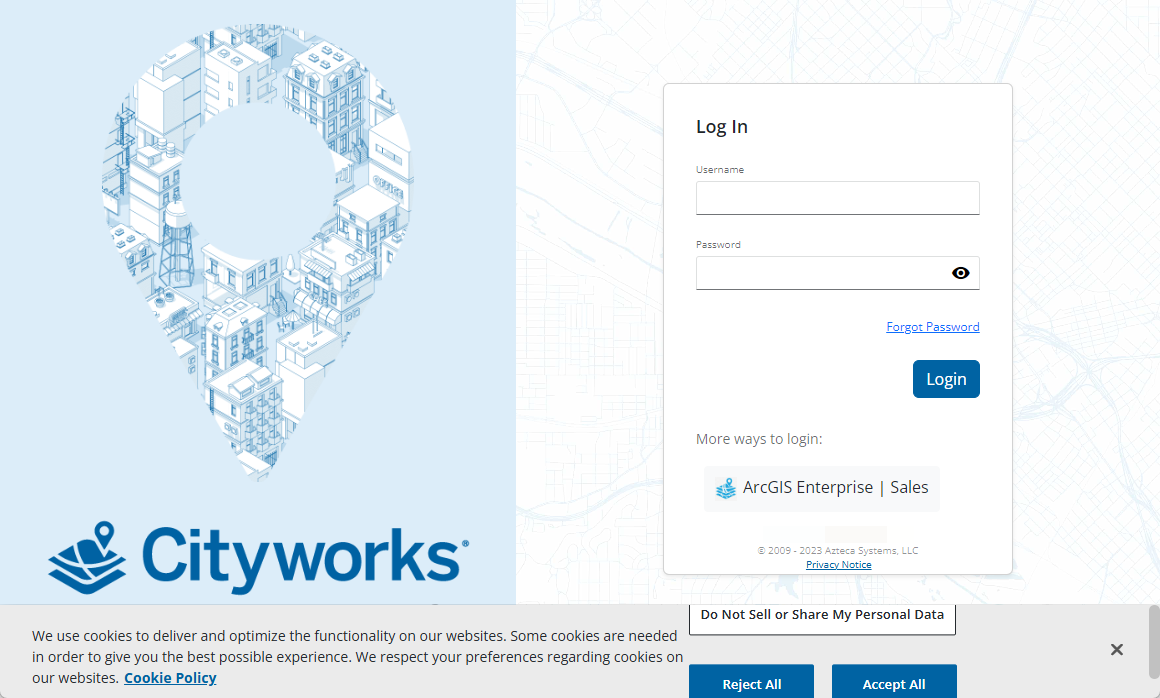
- Enter your Username and Password. You can log in using ArcGIS Online or Portal for ArcGIS credentials if these have been set up for your site. See the Single Sign-on 23 Guide for more information.
NOTE: These fields may be hidden if your administrator has selected the Collapse Default Login preference in Admin. See
A link to Trimble's privacy notice and a cookie settings message have been added to the log in page. When accepted, cookie settings can help enhance site navigation and analyze site usage.
NOTE: At Trimble, we value privacy and transparency. With the release of Cityworks 23.14, there is an issue with the cookie banner. Please review the Issues Addressed in Cityworks 23.14 for more information.
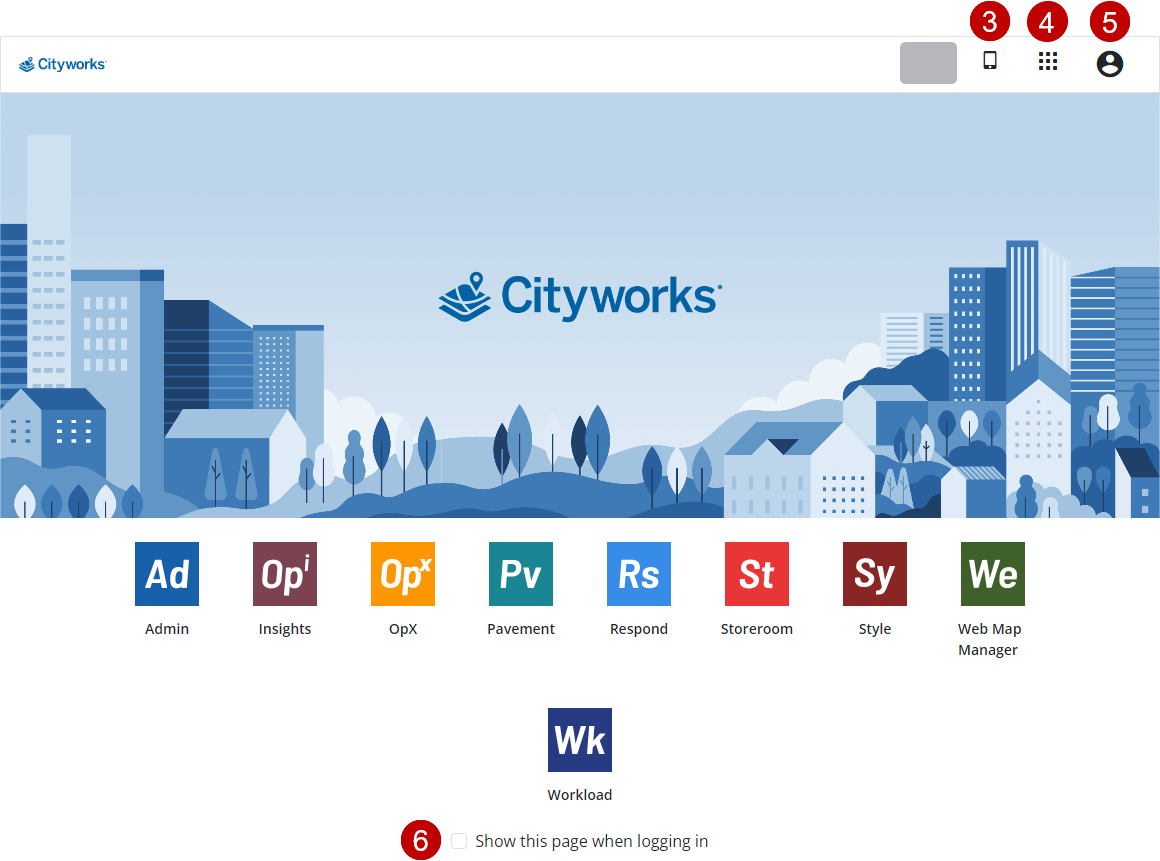
You are logged into the last app you viewed. For example, if you were viewing Respond when you logged out last, Respond opens. If this is your first time logging in, a landing page opens. From the landing page you can navigate to any apps you are licensed for or scan a QR code to download the mobile apps.
NOTE: If
-
-
-
- Select the Show this page when logging in check box to always open the landing page instead of opening the last app you viewed before logging out.
NOTE: