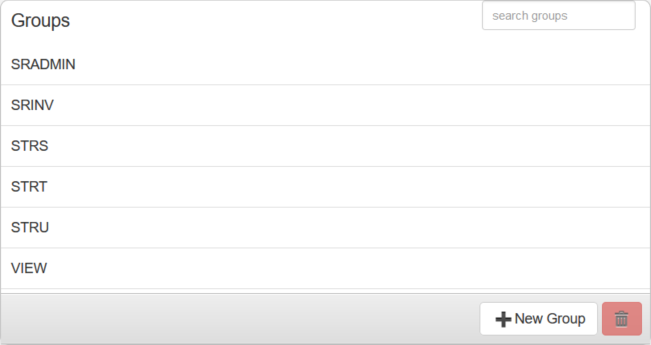
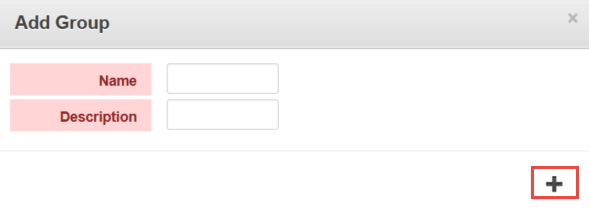
Groups is used to add or update groups.
PREREQUISITES:
|
The Groups panel lists all of the existing groups. You can filter this list by typing the first few letters of the groups in the search box in the top-right corner of the panel.
The Group Details panel displays the Name and Description of the group, and the Group Members and Group Rights.
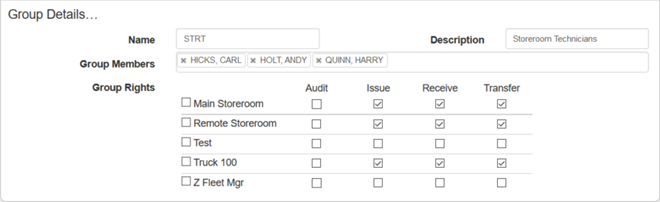
NOTE: If you have a user who needs to issue material from a work order, but isn't licensed for Storeroom, add them to a group and give the group Issue rights to all storerooms they work in. This allows the user to select a storeroom while issuing material from a work order outside of Storeroom.
TIP: Click the X next to a group member to remove it from Group Members, or press Delete on your keyboard.
The Group Rights section displays the group's permissions in the listed storeroom(s).
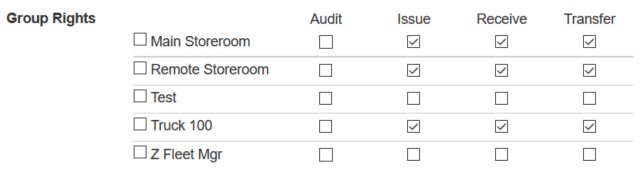
NOTE: If a user has Issue rights, Receive rights should also be given so that unused material can be received back into the storeroom. Any user has the rights to perform a requisition as it is merely a request for material and doesn't affect the inventory.
For an explanation of the Group Rights found on this page, see Group Rights Fields.
NOTE: Storeroom automatically saves the changes you make. A notification will appear in the top of the window that says Data Saved when you make changes to the page.
Last updated 1/3/2020.
Copyright© 2014–2018 by Azteca Systems, LLC. All rights reserved.