Perform an Audit
Audit and the cycle counting capabilities in Storeroom allow you to manage the frequency of audits and automatically adjust the audit date based on that frequency when the audit is performed.
|
|
 PREREQUISITES:
 TIP: For a quick start guide on this subject, see Audit Material.
- Click Audit on the Storeroom toolbar.
 NOTE: It is a best practice to have all issue, receive, and transfer transactions recorded in the system before performing any audit transactions. If an audit transaction is entered before a receive or transfer transaction (meaning the receive or transfer transactions have a transaction date and time that is before the audit transaction date and time) is entered, then Storeroom will only record the receive or transfer transaction in the database and will not change the stock-on-hand quantity or add any comments.
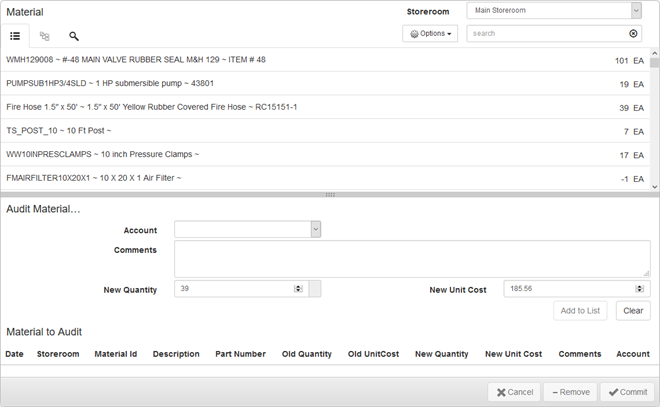
- Select a Storeroom from the drop-down list. This changes the list of materials. You may only select materials from one storeroom at a time.
- Select materials from the list. See Material Panel for information on using the search tabs to find materials.
TIP: To select multiple materials use <Shift + click> or <Ctrl + click>.
- Enter the information in the Audit Material panel below the material list to audit the material, including the New Quantity and/or New Unit Cost if those fields have changed.
For an explanation of the fields found on the Audit Material panel, see Audit Transaction Fields.
- Click Add to List to add the material to the Material to Audit list.
You can adjust the Unit Cost before committing the material, if desired.
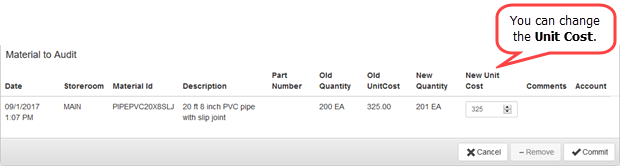
- If you would like to add other materials to this audit transaction, click Clear to clear the fields and add another material to the list.
- To remove one of the records from the Material to Audit list, select the record and click Remove.
- Click Commit to process all audits listed.
When an audit transaction is recorded, both the Transaction Date and Recorded Date are populated with the current date and time. Audit transactions cannot be postdated, meaning that it is necessary for users to transact audits in real-time. This allows for auditing of LIFO and FIFO cost types.
NOTE: Azteca Systems recommends that users either use a Wi-Fi network in their storeroom or use a tablet PC or other device that allows users to run Storeroom to first count and then record the audit transactions.

Documentation Feedback Form
Please give us feedback about this Cityworks guide.
If you have a feature enhancement request, please see the Ideas page on MyCityworks.
Last updated 1/3/2020.
Copyright© 2014–2019 by Azteca Systems, LLC. All rights reserved.