Receive Material from a Work Order
If material was issued to a work order and wasn't used, you can receive it back in Storeroom to keep an accurate account of material costs for the work order. Alternatively, you can remove the material from the work order. See
- Tap Receive from the menu.
- Tap Work Order Material on the Material panel.
- Enter the Work Order Id. If the ID is not known, tap the search icon to search for the work order. See Search for a Work Order for more information.
The materials issued to the work order appear in the list.
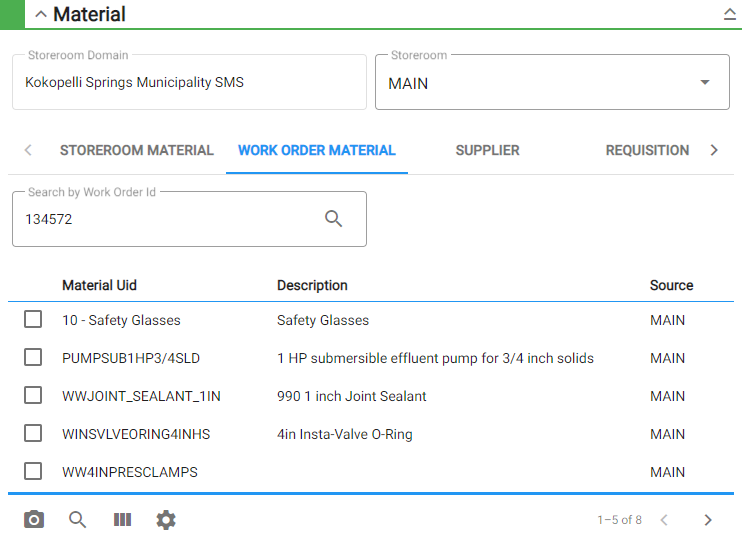
- Select one material from the list. See Search Materials for more information on using the search tabs to find materials.
- Enter the information in the Receive panel to receive the material, including the Quantity which is required to receive material. The Unit Cost is already populated with cost entered when it was issued to the work order and cannot be changed.
For an explanation of the fields found on the Receive panel, see Receive Transaction Fields.
- Tap Add to List to add the materials to the Pending Receives panel.
You can filter the material in the list by tapping Filter records and entering the first few letters or numbers of the material name, bin location, or part number.
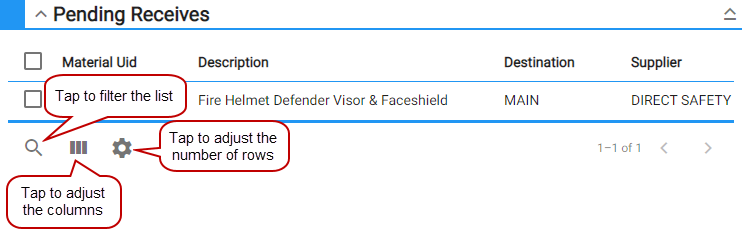
You can modify the Pending Receives panel in one of the following ways:
- Tap Column menu to modify the columns shown, such as if a column is included, or to change the order of the columns. Alternatively, reorder the columns by dragging and dropping them. Any changes made to the column settings are remembered.
- Tap Rows to adjust the number of rows shown in the panel. The number set in this panel will persist on all other transaction pages for the corresponding pending material panel.
- If you would like to add other materials to this receive transaction, tap Clear in the Receive panel to clear the fields, then add another material to the list.
- To remove one of the records from the Pending Receives list, select the record and tap the Delete selected records icon.
- To add an attachment, tap Add and browse to the desired file.
- Tap Commit to process all received materials listed. Tapping Commit adjusts the stock on hand for the storerooms selected and adjusts the material cost on the work order.