Edit Tasks in a Task Group
Existing tasks in a task group may be updated or changed at any time without having to create new tasks in the task group to replace them.
|
|
 PREREQUISITES:
To edit tasks in your workflow, follow these steps:
- Click Tasks & Inspections on the PLL Admin menu and select Workflow Setup.

- On the Workflow Setup panel, click the plus icon next to the task group you wish to inspect.
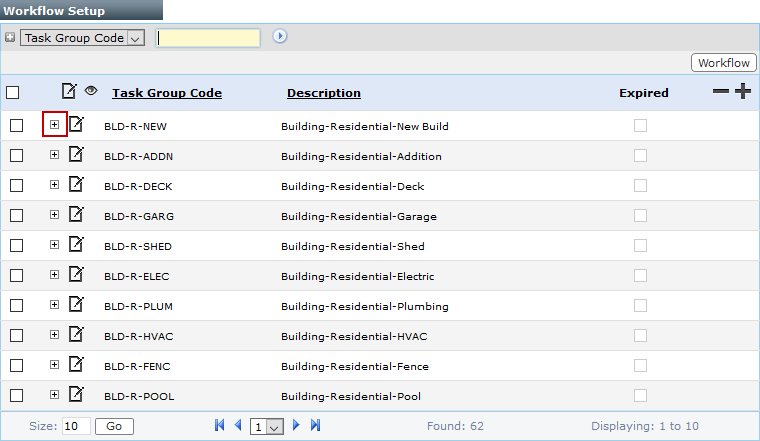
 NOTE: Search or filter the records on this panel to quickly find the one(s) you want. See Search and Filter Records for more information.
- When the task group sub panel appears, click the check box next to the task you wish to edit, and then click Edit record.
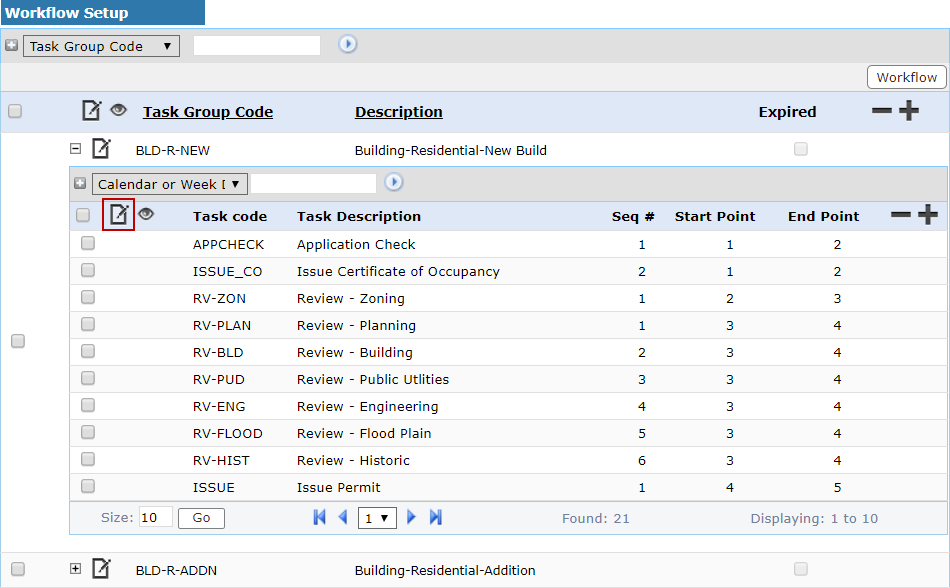
- When the Edit: Task Group Detail panel opens, make any changes you desire. See Add Tasks to a Task Group for more information.

NOTE: If you click Workflow while the Edit: Task Group Detail panel is open, the panel will close automatically. This is the expected behavior to prevent confusion about what is being edited.
You can now edit the Seq # field. This field controls the order in which this task appears in the task group. You may change it if you wish.
- Select the Auto Sequence Tasks check box to reorder the list of tasks according to Seq # value when you save the task.
- Click Save.
NOTE: The Edit: Task Group Detail panel closes automatically after you click Save.