Transfer Material
Transfer allows you to transfer materials from one storeroom to another.
|
|
 PREREQUISITES:
 TIP: For a quick start guide on this subject, see Transfer Material.
- Click Transfer on the Storeroom toolbar.
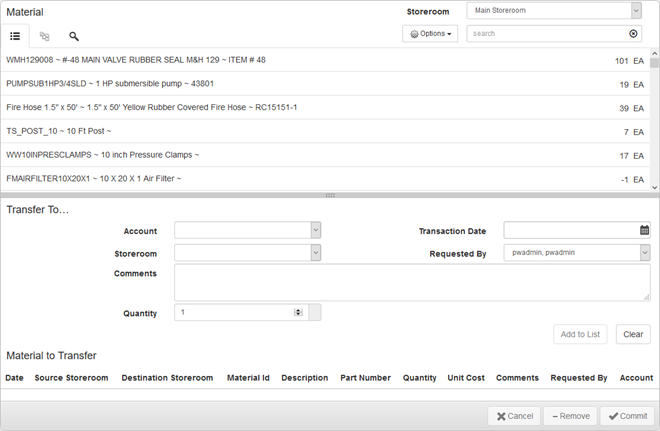
- Select a Storeroom from the drop-down list. This changes the list of materials. You may only select materials from one storeroom at a time.
- Select materials from the list. See Material Panel for information on using the search tabs to find materials.
TIP: To select multiple materials use <Shift + click> or <Ctrl + click>.
- Enter the information in the Transfer To panel below the material list to transfer the material.
TIP: If the desired supplier doesn't appear in the Supplier drop-down list, see Add a Supplier to Material for information.
For an explanation of the fields found on the Transfer To panel, see Transfer Transaction Fields.
- Click Add to List to add the materials to the Material to Transfer section.
You can adjust the Unit Cost before committing the material, if desired.
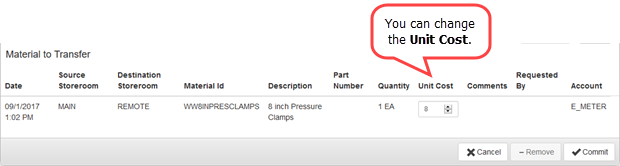
- If you would like to add other materials to this transfer transaction, click Clear to clear the fields and add another material to the list.
- To remove one of the records from the Material to Transfer list, select the record and click Remove.
- Click Commit to process all transfers listed. Clicking Commit adjusts the stock on hand for the storerooms selected.

Documentation Feedback Form
Please give us feedback about this Cityworks guide.
If you have a feature enhancement request, please see the Ideas page on MyCityworks.
Last updated 1/3/2020.
Copyright© 2014–2019 by Azteca Systems, LLC. All rights reserved.