View and Edit Tasks
You can view or edit information for a task. You can edit individual tasks or multiple tasks using one of the following methods.
 View and Edit Individual Tasks
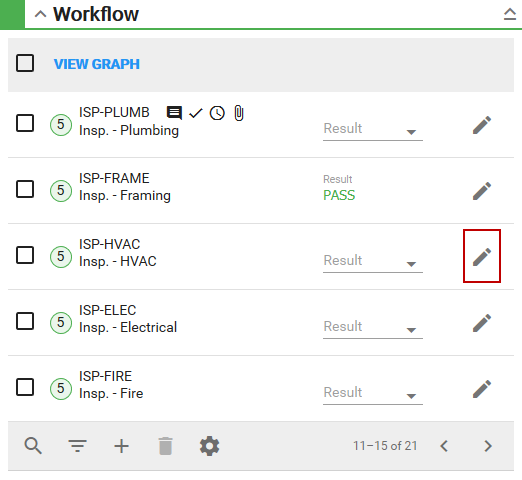
- Tap the edit icon to the right of the task. Depending on the Task Code chosen, different fields may appear.
The Task Edit panel appears.
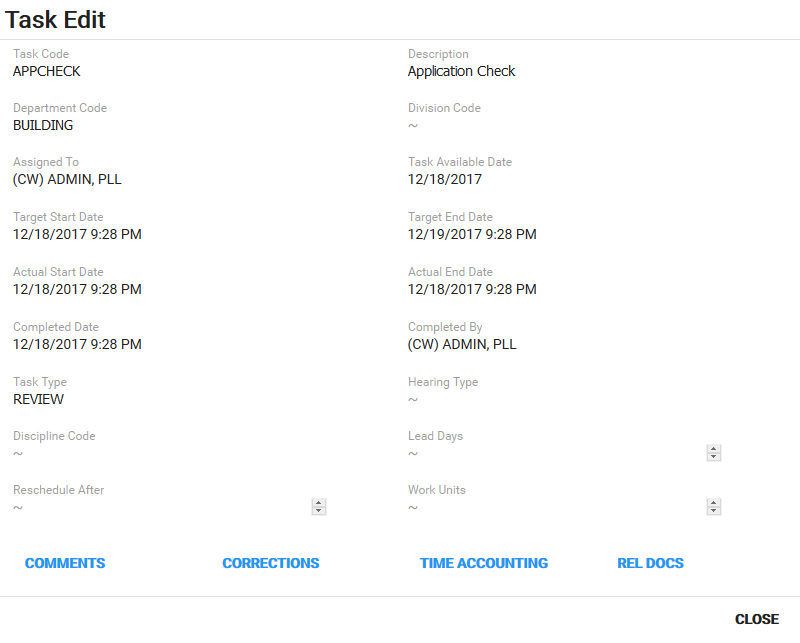
- Tap any of the fields and edit the information.
- Tap Save to save any changes made.
You can also add, edit, or remove comments, corrections, and time accounting information associated with the task. See Use Comments, Use Corrections, Use Time Accounting, Rel Docs, and Workflow Fields for more information.
Edit Multiple Tasks
- Select multiple tasks in the Workflow panel.
Three dots appear next to View Graph.
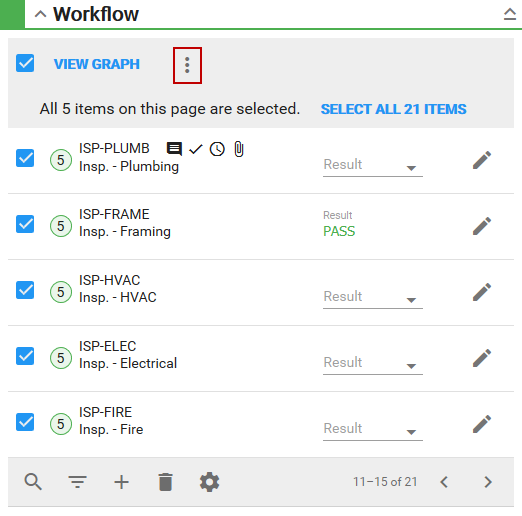
- Tap the three dots and tap Edit.
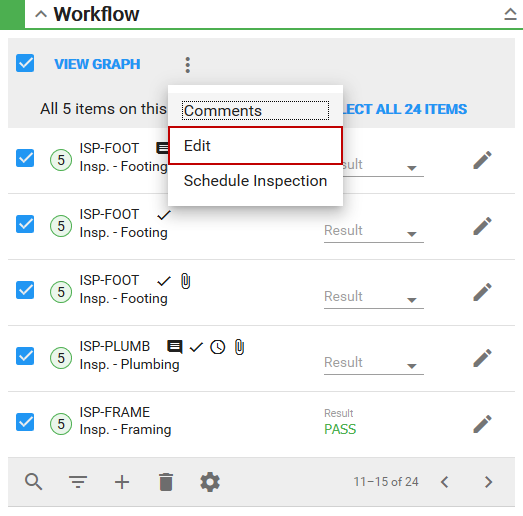
The Editing task(s) panel appears.
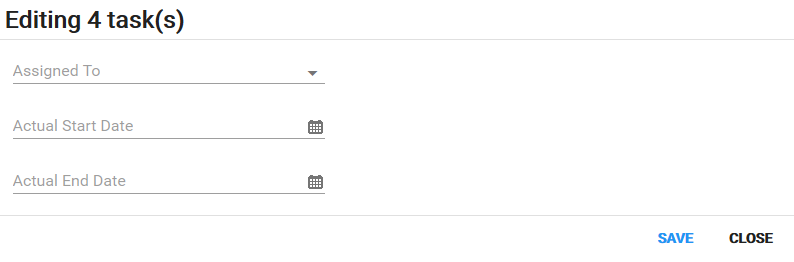
See Workflow Fields for more information.