Receive Material
Receive allows you to track all purchased materials and purchase orders, monitor supplier cost and activity, and organize and manage inventory.
|
|
 PREREQUISITES:
 TIP: For a quick start guide on this subject, see Receive Material.
- Click Receive on the Storeroom toolbar.
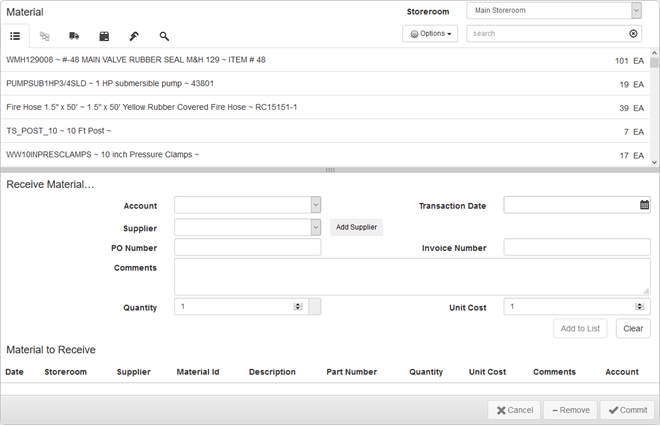
- Select a Storeroom from the drop-down list. This changes the list of materials. You may only select materials from one storeroom at a time.
- Select materials from the list. See Material Panel for information on using the search tabs to find materials.
TIP: To select multiple materials use <Shift + click> or <Ctrl + click>.
 NOTE: When more than one material is selected at a time, all material will be received under the same Account, Supplier, PO and Invoice numbers, Quantity, and Unit Cost.
- Enter the information in the Receive Material panel below the material list to receive the material, including the Quantity and Unit Cost fields, which are required to receive material.
TIP: If the desired supplier doesn't appear in the Supplier drop-down list, see Add a Supplier to Material for information on adding suppliers to material items.
For an explanation of the fields found on the Receive Material panel, see Receive Transaction Fields.
- Click Add to List to add the materials to the Material to Receive section.
You can adjust the Unit Cost before committing the material, if desired.
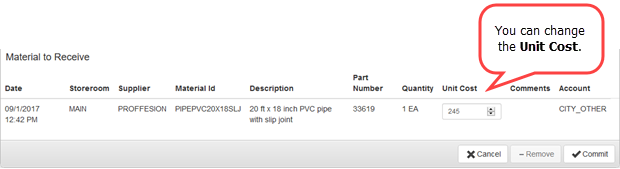
- If you would like to add other materials to this receive transaction, click Clear to clear the fields and add another material to the list.
- To remove one of the records from the Material to Receive list, select the record and click Remove.
- Click Commit to process all received materials listed. Clicking Commit adjusts the stock on hand for the storerooms selected.
Material can be received from a requisition. See Receive a Requisition Transaction for more information.

Documentation Feedback Form
Please give us feedback about this Cityworks guide.
If you have a feature enhancement request, please see the Ideas page on MyCityworks.
Last updated 1/3/2020.
Copyright© 2014–2019 by Azteca Systems, LLC. All rights reserved.