View and Edit an Inspection
Cityworks inspections can be viewed and edited in the Trimble Unity mobile app and then pushed back to Cityworks. This is helpful for when you're using integrations like E. H. Wachs valve exercising machines while inspecting the valves.
- Select an inspection from the list.
The inspection details open. From here you can view details about the inspection by switching between the sections within the inspection.
- Click Edit to edit the inspection details.
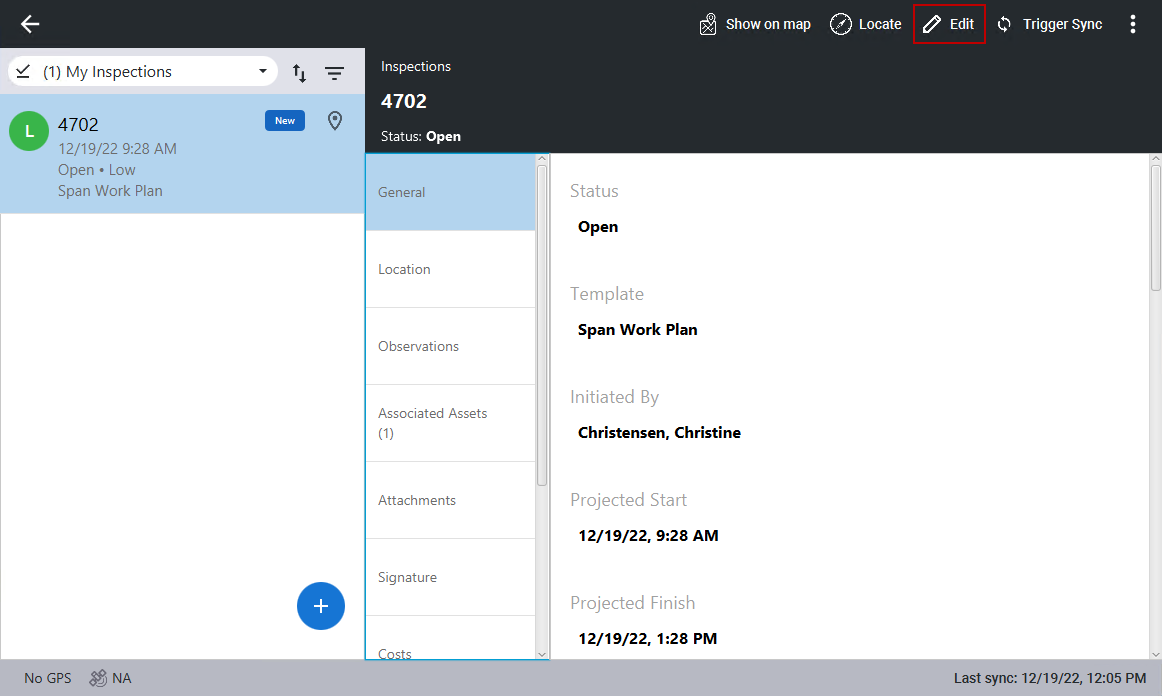
The General section contains general information about the inspection, including who it is assigned to, the projected start date, the status, and the location.
The Location section contains information about the location of the inspection.
The Observations section contains the inspection observations. The fields vary depending on the type of inspection you are viewing and how the observations on the inspection templates are configured in Cityworks. Some fields allow you to select an answer and based on the answer, other questions appear or you can run an exercise, such as testing valve inspections with the Wachs integration. See Complete Observations for more information.
The Associated Assets section contains the asset attached to the inspection. See View an Inspection on the Map for more information.
The Attachments section contains any files or markups attached to the inspection. See Add Attachments, Mark Up Attachments, or Remove Attachments for more information.
The Signature section contains signatures associated to the inspection.
The Costs section contains the labor or equipment attached to the inspection. See Add Labor or Add Equipment for more information.
The Related Inspections section contains the inspections associated to the inspection.
The Related Work Orders section contains the work orders associated to the inspection.
- Once you have completed editing the inspection, click Save in the top-right corner.