Search for a Requisition Transaction
Any requisition transaction created in Storeroom can be searched for in the Search tab on the Requisition panel. The search parameters can be saved using Save Search As and later opened by clicking Open. See Save a Search for more information.
- Click Requisition on the Storeroom toolbar.
- Click the Search tab on the Requisition panel.

 NOTE: Leave fields blank and click Search to generate a list of all open requisitions.
- Enter information in any of the search fields to initiate a search.
NOTE: For some fields on this page, you can use the numeric search icon to define the search criteria for that field. See Search Within a Numeric Range for more information.
Before you click Search, you can define the results list. See Configure Visible Fields for more information.
- Click Search in the top-right corner of the Search tab.
For an explanation of fields found on this page see Requisition Search Fields.
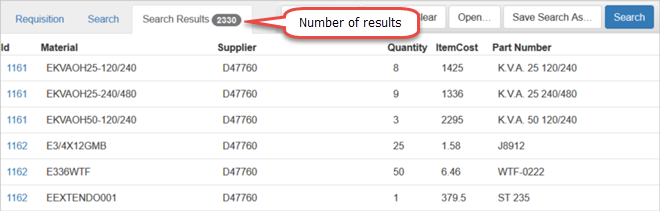
The search results will appear on the Search Results tab with the number of results listed on the tab.
NOTE: If there is no information that matches the search criteria entered, the Search Results tab will be blank.
- To modify the search criteria, click the Search tab, make the desired changes, and click Search to see the new search results.
See Save a Search, Export Search Results to CSV, and Print Search Results for more functions that can be performed on the Search Results tab.

Documentation Feedback Form
Please give us feedback about this Cityworks guide.
If you have a feature enhancement request, please see the Ideas page on MyCityworks.
Last updated 1/3/2020.
Copyright© 2014–2019 by Azteca Systems, LLC. All rights reserved.