View and Edit a Service Request
Cityworks service requests can be viewed and edited in the Trimble Unity mobile app and then pushed back to Cityworks.
- Select a service request from the list.
The service request details open. From here you can view details about the service request by switching between the sections within the service request.
- Click Edit to edit the service request details.
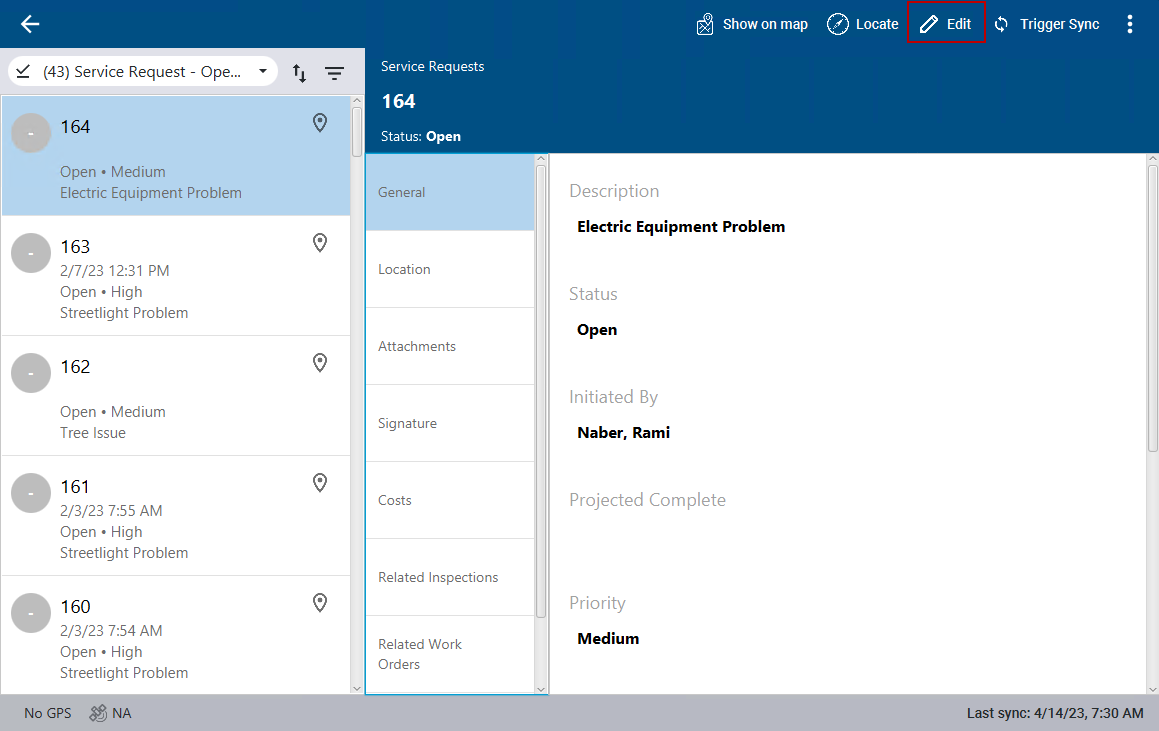
The General section contains general information about the service request, including the description, status, and priority.
The Location section contains information about the location of the service request.
The Attachments section contains any files or markups attached to the service request. See Add Attachments, Mark Up Attachments, or Remove Attachments for more information.
The Signature section contains any signatures attached to the service request. See Add a Signature for more information.
The Costs section contains the labor attached to the service request. See Add Labor Costs for more information.
The Related Inspections section contains the inspections related to this service request. See View Related Inspections or Create a Related Inspection for more information.
The Related Work Orders section contains the work orders related to this service request. See View Related Work Orders or Create a Related Work Order for more information.
The Related Service Requests section contains the service requests related to this service request. See View Related Service Requests for more information.
- Once you have completed editing the service request, click Save in the top-right corner.